
Static QR codes
Create fixed QR codes, save them in your workspace, organize them into folders, and import or export static QR assets.
Static QR codes
Static QR codes encode their content directly in the QR image. They are useful for simple utility and print workflows where the content will not need to change after download.
Use Static QR when you need a fixed code for a WiFi sign, contact card, WhatsApp action, SMS action, event reminder, location, or plain text. Use a Nimriz link QR instead when you need an editable destination, routing, expiry, password protection, or scan analytics.
Public generator and saved library
Nimriz has two Static QR workflows:
- Public generator: visitors can preview and style static QR codes from
/qr-code-generatorand the type-specific generator pages. Styling happens entirely in the browser: colors, patterns, corners, gradients, transparent backgrounds, quiet zone, and error correction are all free. PNG and SVG download require the download form, and the free download includes a small Nimriz watermark. Center logos and CTA frames preview in the tool but need a workspace to keep. Public generator payloads are not stored as saved QR records. - Saved Static QR: signed-in users can create, save, organize, edit, duplicate, archive, delete, import, export, and download fixed QR codes from QR CodesStatic QR.
Supported types
The public generator supports:
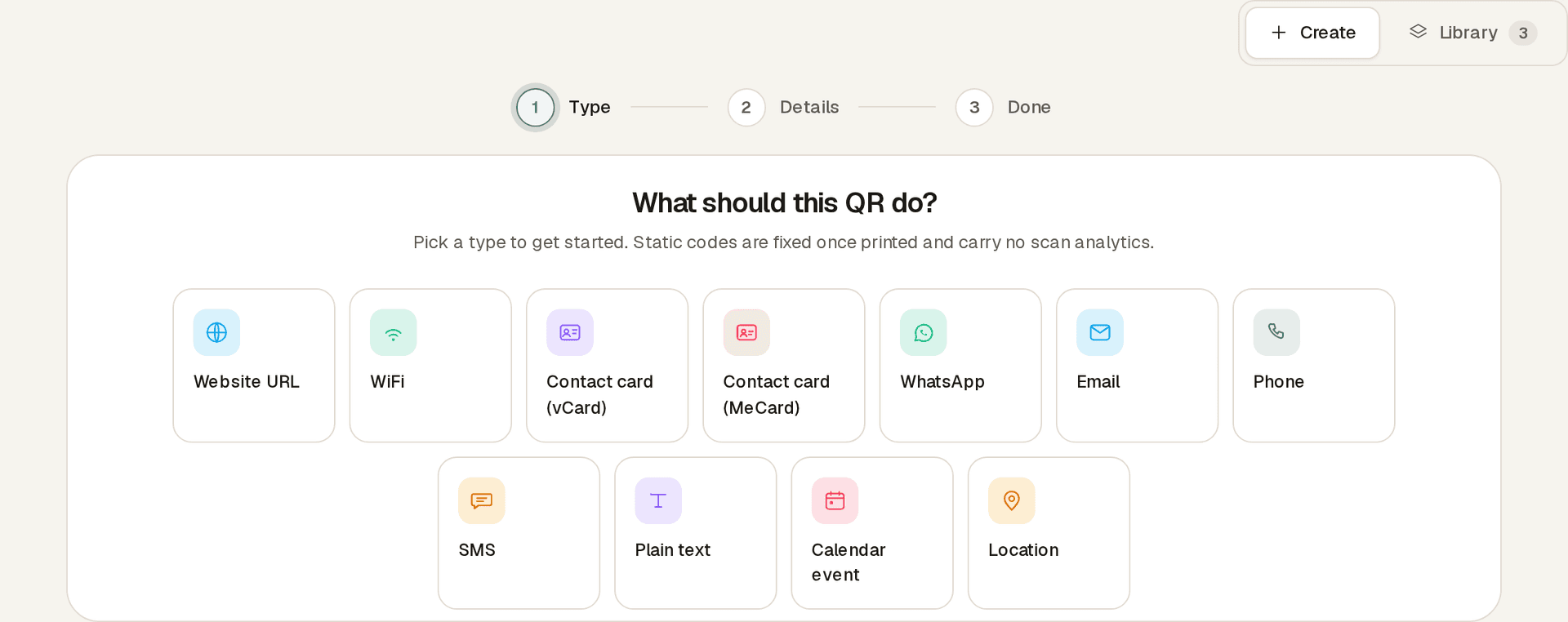
- Website URL
- Plain text
- WiFi
- Phone
- SMS
Signed-in workspaces can also save:
- vCard contact card
- MeCard contact card
- Calendar event
- Location
Each QR type validates its own fields before the code is saved or downloaded. Text supports accented characters, other writing systems, and emoji. The amount of content that fits depends on its characters and the selected design. If it is too long, shorten it before saving or downloading. WiFi names and passwords keep spaces exactly as entered. For a location pin, enter both latitude and longitude, or use a place name or address. Always scan-test the finished code on the phones and print surface you expect people to use.
Create a saved Static QR code
- Open QR CodesStatic QR.
- Choose Create.
- Pick the QR type from the type grid.
- Fill in the fields for that type. The preview and readiness check update as you type.
- Choose a saved QR preset, use no preset, or open Custom design to set colors, pattern, and CTA layout.
- Name the asset and optionally choose a QR folder.
- Save the code, scan-test it, then download PNG or SVG.
Saved QR presets can be reused from the design dropdown and managed from Manage presets. If your workspace is already at its saved-code limit, the new code is not stored, but you can still download it.
Private content warning
Some Static QR codes can contain private details, such as a WiFi password, a message, a contact card, or private text.
When you save one of these codes, Nimriz stores the validated payload fields in your workspace. Share saved Static QR codes only with people you trust, and avoid putting sensitive content into printed codes that may be copied or photographed.
Public generator payloads are not saved to your workspace unless you sign in and create a saved Static QR record.
Static QR scans are not tracked
A Static QR code resolves directly to its encoded content. Nimriz cannot count scans or show scan analytics for a fixed code unless that code points to a Nimriz managed link.
If you need scan analytics, create a Nimriz link with the destination you want and download the link QR image from the link detail view.
Library actions
Use the Library mode in QR CodesStatic QR to manage saved static codes.
- Search and filter saved codes by name, type, status, or folder.
- Switch between gallery and table views.
- Download, edit, duplicate, archive, restore, or delete a saved code.
- Organize saved codes into QR-specific folders for campaigns, locations, or projects.
- Move selected codes into or out of a folder.
Deleting a QR folder keeps the saved codes and removes only the folder assignment.
Import static codes from CSV
Use Import in the Static QR library toolbar to create many saved codes from a CSV file.
Required columns:
nametypedata
Optional columns:
messagesubjectfoldercolor
Supported CSV import types are website URL, plain text, phone, email, WhatsApp, SMS, and location. Rows are validated individually, so valid rows can be created while rows with errors are reported for review and re-import.
CSV import is available on Growth plans and above.
Export static codes
Select saved Static QR codes in the library, then choose Download to queue a ZIP archive of their images.
The ZIP includes a manifest.json file that lists each requested code, its output status, and any render failure reason. If some codes cannot render, Nimriz still prepares the ZIP when at least one code succeeds.
Open QR CodesExports to track the job and download the completed archive. See Exports for the shared async job and manifest details.
Bulk QR downloads are available on Growth plans and above.
Plan availability
The QR Codes area is available on every plan. QR styling, transparent backgrounds, and styled downloads are included on every plan. Saved Static QR limits, QR folder limits, logo upload, watermark removal, presets, CTA frames, bulk imports, bulk downloads, and API access vary by plan.
Check your plan details in the workspace before preparing a large import or bulk download. Professional and Enterprise workspaces with QR API access can also manage QR Suite objects programmatically through the customer API.
Related
- QR Codes dashboard for the signed-in QR Codes area.
- Custom QR codes for link-backed QR styling and scan analytics.
- QR pages for editable hosted pages behind a QR code.
- Retail & GS1 QR codes for product-backed GS1 workflows.
- API reference for QR API endpoints.
Related next steps
Follow setup and reference guides for Nimriz products and integrations.
Use this static QR checklist to confirm fixed content, design, print testing, ownership, and replacement notes before distributing a static QR code.
Choose static QR for fixed utility codes and dynamic QR for managed links, scan reporting, and destinations that may need to change after print.
Practical static QR examples for WiFi signs, contact cards, phone actions, email actions, text notes, and simple utility placements.
Ready to test this setup?
Create an account to try the workflow, or compare plans when the setup needs higher limits, integrations, or team controls.