
Exports
Export your link catalog and click-level analytics data as CSV for reporting and integrations.
Two types of exports
Nimriz provides two distinct export types, each designed for a different purpose.
Link catalog export: a snapshot of your current link configuration. This shows what each link looks like today: its destination URL, UTM fields, tags, space assignment, expiration, and lifetime click count.
Analytics report export: a reporting CSV generated from stored analytics rollups and attribution facts. It uses click-time attribution data where available, not the link's current UTM state.
The Exports area also tracks async bulk QR ZIP jobs, including link QR, static QR, and Retail & GS1 generated asset exports. These are not CSV exports, but they use the same background-job queue and recent-jobs history.
Link catalog export
What it contains
A link catalog export produces a CSV file with one row per link in your workspace (or matching your active filters). Columns:
| Column | Description |
|---|---|
url_id | Permanent UUID for the link. Use this as the stable join key for external systems. |
domain_name | The domain the link is on. |
space_name | The space name (blank if unassigned). |
tags | Pipe-separated (|) list of tag names. |
partner_name | Partner display name, when partner tracking applies to the link. |
program_name | Partner program name, when applicable. |
short_code | The slug (e.g., spring-launch). |
short_url | The full short URL (e.g., https://links.example.com/spring-launch). |
long_url | The current destination URL. |
destination_host | The destination hostname. |
utm_source | Current UTM source value. |
utm_medium | Current UTM medium value. |
utm_campaign | Current UTM campaign value. |
utm_term | Current UTM term value. |
utm_content | Current UTM content value. |
custom_query_params_json | Custom query parameters as a JSON string. |
status | active, disabled, or flagged. Expiration is reflected in expires_at, not in status. |
created_at | Link creation timestamp. |
created_by_user_id | Creator's user UUID. |
created_by_user_name | Creator's display name. |
created_by_user_email | Creator's email address. |
creation_source | How the link was created (dashboard, API, import, etc.). |
clicks | Lifetime click count (updated periodically, not real-time). |
last_clicked_at | Timestamp of the most recent recorded click. |
expires_at | Expiration timestamp (ISO 8601), or blank if no expiration. |
password_protected | true or false. |
short_url remains useful as a readable link reference, while url_id is the durable identifier for joins and sync jobs.
How to export the link catalog
- Go to the main Links view in your dashboard.
- Optionally apply filters (by space, tag, domain, status, or search) to limit the export to a specific subset.
- Click the Export CSV button (download icon) in the toolbar.
The CSV downloads immediately with your active filters applied. Very large workspaces are capped at 10,000 rows per export-narrow the filters to export a workspace in slices.
CSV cells that look like spreadsheet formulas are prefixed with an apostrophe so spreadsheet apps treat them as text.
Analytics report export
What it contains
An analytics report export produces a CSV file with one row per reporting group within the date range you specify. It is designed for campaign reporting, reconciliation, and BI import, not as a raw clickstream export. Columns can include:
| Column | Description |
|---|---|
organization_id | Organization UUID when the workspace belongs to an organization. |
workspace_id | Workspace UUID for the export. |
date | UTC reporting date. |
domain_id | Domain UUID. |
domain_name | Domain name for the reporting row. |
link_id | Link UUID. |
short_code | Link slug for the reporting row. |
destination_url_capped | Sanitized destination snapshot, origin plus pathname only. |
created_by_user_id | Link creator UUID when available. |
creation_source | Link creation source when available. |
event_key | Canonical event key, such as short_link_click, qr_scan, hosted_page_viewed, or contact_saved. |
event_name | Product event name, such as Hosted Page Viewed. |
event_label | Dashboard label used in Nimriz reporting. |
touch_type | Original stored event key. Older rows can contain legacy values that map to event_key. |
utm_source | UTM source value at click time. |
utm_medium | UTM medium value at click time. |
utm_campaign | UTM campaign value at click time. |
utm_term | UTM term value at click time. |
utm_content | UTM content value at click time. |
properties | Managed custom query parameters when available. |
clicks | Click count for the row, respecting the export's bot setting. |
total_clicks | Total click count including bot-flagged traffic. |
human_clicks | Click count with bot-flagged traffic excluded. |
bot_clicks | Bot-flagged click count. |
include_bots | Whether the requested export included bot traffic in the clicks column. |
Note: Analytics exports use click-time UTM values, not the link's current UTM state. If you changed a link's utm_campaign after some clicks happened, the export will show both the old and new values for their respective click windows.
Hosted-page and card engagement metadata, such as block ids, file ids, providers, and target hosts, is available in analytics drilldowns where supported. Bulk analytics report exports keep event naming canonical and do not include full outbound URLs, lead values, RSVP identity values, raw IPs, full User-Agent values, visitor hashes, raw nim_ct, raw external click IDs, or full referrer URLs.
Conversion exports use the same async export system. They may include touch_id, touch_time, click-time UTM fields, sanitized destination snapshots, order/event identifiers, and variant or experiment identifiers needed for attribution reconciliation.
Click and conversion CSV exports include all reporting groups that match the requested date range and filters, including reports with more than 1,000 rows.
How to generate an analytics export
- Go to Exports in the dashboard navigation.
- In the Request export panel, choose the Dataset: Clicks, or Conversions on plans that include conversion exports.
- Choose the Format (CSV; some plans also offer Parquet).
- Set Range start (UTC) and Range end (UTC). The maximum range per job depends on your plan.
- Optionally scope to a single Domain and tick Include bot traffic if you want bot-flagged clicks counted in the
clickscolumn. - Click Request export.
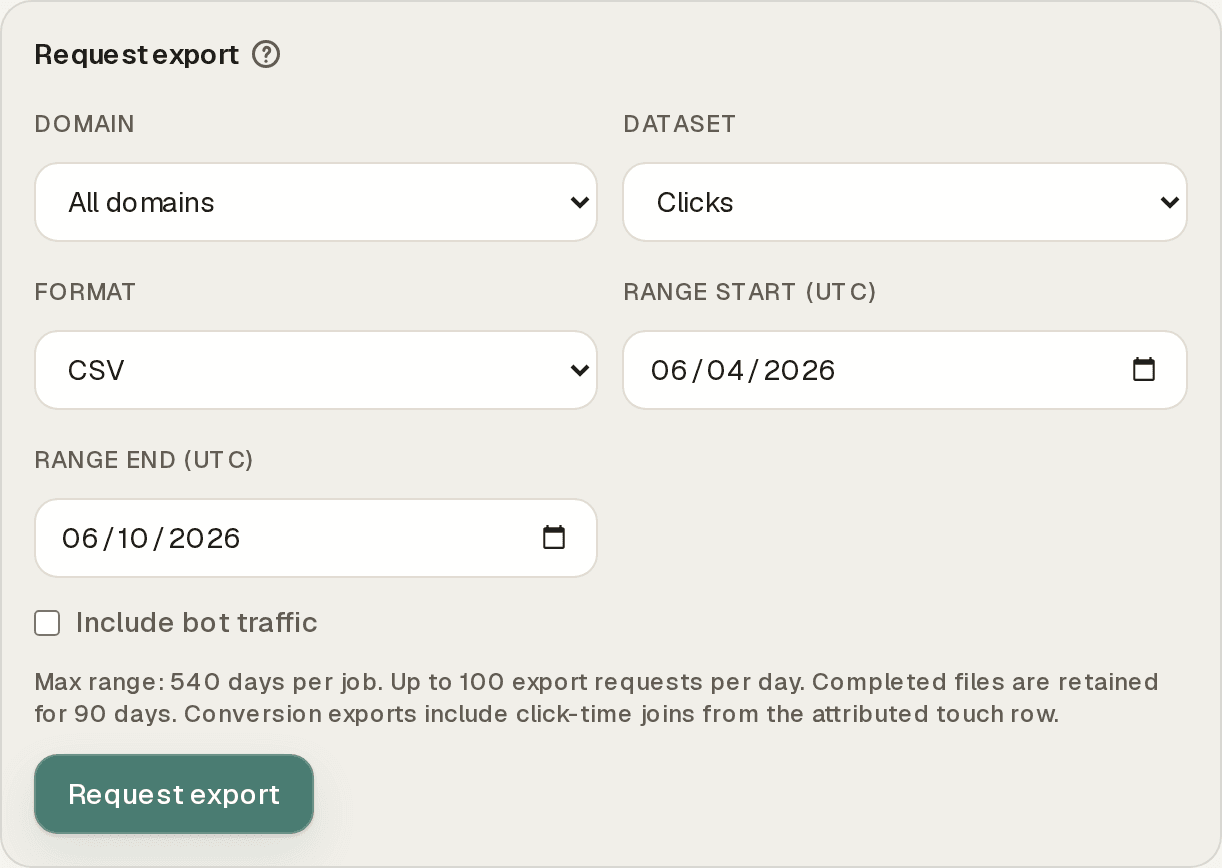
Analytics exports are always async. They run as background jobs, appear in the export history on the same page, and are typically ready within a few minutes for smaller date ranges.
CSV analytics and conversion exports use the same spreadsheet-safety treatment for formula-like cells.
Bulk QR ZIP downloads
Growth, Professional, and Enterprise workspaces can queue a ZIP of QR assets from the main Links table.
What the ZIP includes
- One rendered QR asset per successful link selection.
- Files generated from each link's saved effective QR state, including preset bindings, per-link overrides, transparent backgrounds, frames, and logos.
- A
manifest.jsonfile describing every requested link, whether it succeeded or failed, and which render source Nimriz used.
What manifest.json contains
Each result row can include:
| Field | Description |
|---|---|
url_id | Permanent UUID of the selected link. |
status | ready or failed. |
short_code | Link slug when available. |
domain_name | Domain used for the QR asset when available. |
file_name | Generated filename inside the ZIP for successful renders. |
qr_style_hash | Canonical style hash for the rendered asset when available. |
render_source | Whether Nimriz rendered from the link's effective saved state or a specific preset-driven request. |
error | Failure reason when a selected link could not be rendered. |
How to queue a bulk QR ZIP
- Go to Links in the dashboard.
- Select one or more links.
- Click the Download QR ZIP action in the toolbar. The PNG job queues immediately-there is no confirmation step.
- You are taken to Exports, where the job moves from queued to ready.
Current bulk QR job rules
- The dashboard flow exports PNG assets at 1024px.
- The job stays in the shared Exports history so you can leave the page and return later.
- Partial success is allowed. If at least one QR asset renders, Nimriz still prepares the ZIP and lists failed items in
manifest.json. - Bulk QR ZIP downloads do not create a separate QR inventory. They are snapshots of the QR settings already attached to the selected links.
Static QR ZIP jobs
Saved Static QR codes can be exported from QR CodesStatic QR. Select one or more saved codes, then choose Download to queue the ZIP export.
Each Static QR ZIP includes a manifest.json with the selected code id, name, payload type, output format, size, render status, failure reason code when applicable, and generated file name. The manifest does not include raw QR payload values.
Partial success is allowed. If at least one selected code renders, Nimriz still prepares the ZIP and lists failed items in manifest.json.
Retail & GS1 ZIP jobs
Retail & GS1 generated assets can be exported from QR CodesRetail & GS1. The Export ZIP action exports all of a product's generated GS1 QR and GS1 DataMatrix assets; choose whether to include validation reports before queuing. (The export API also accepts a subset of generated code IDs.)
Each Retail & GS1 ZIP includes a manifest.json with generated code ids, product and GTIN context, canonical URI, symbology, validation status, and per-item render status. Validation reports, when included, are stored as JSON files under validation-reports/.
Async export jobs
Analytics, conversion, and QR ZIP exports are generated asynchronously. When you trigger one:
- Nimriz creates an export job and shows its status in the job history on the Exports page (QR jobs also appear under QR CodesExports).
- The job runs in the background. You can navigate away and come back.
- When complete, the job offers Download artifact.
- Download artifacts are temporary-they expire after your plan's retention period. Download the file promptly once it is ready.
If an export job fails:
- Check the error message shown in the Exports view.
- Common causes: date range too large (try a shorter range), or a temporary service issue. Retry with a narrower scope.
Export limits and plan considerations
| Consideration | Details |
|---|---|
| Link catalog size | Catalog exports are capped at 10,000 rows per request. Use filters to export larger workspaces in slices. |
| Analytics date range | The maximum date range per export job depends on your plan. |
| Daily export requests | Each plan allows a limited number of export job requests per day. The current limits are shown in the Request export panel. |
| Download expiry | Completed export artifacts are retained for your plan's retention period, then expire. |
Using exports for integrations
Link catalog exports are useful for:
- Syncing your Nimriz link inventory to external databases or BI tools.
- Auditing your link library (verifying UTM consistency, finding expired links, checking for broken destinations).
- Importing a link list into a spreadsheet for team review.
Analytics exports are useful for:
- Feeding reporting data into your data warehouse or BI tool.
- Attribution analysis combining Nimriz click context with your own conversion data.
- Reconciliation with your web analytics tool at a campaign level.
Dashboard export endpoints
The endpoints behind the export surfaces are dashboard endpoints authenticated by your logged-in browser session. They are not part of the workspace-API-key customer API, and workspace API keys do not authenticate them. The request shapes below are documented for reference.
Export artifact downloads require the logged-in dashboard session and trusted workspace context for the job's workspace. A direct request without that context is rejected.
The link catalog download:
GET /api/links/export
For analytics export jobs:
POST /api/exports/jobs
Content-Type: application/json

{
  "dataset": "clicks",
  "format": "csv",
  "range_start": "2026-01-01",
  "range_end": "2026-03-31",
  "include_bots": false
}
Check job status via the export job list:
GET /api/exports/jobs
Download when complete:
GET /api/exports/jobs/:job_id/download
For bulk QR ZIP jobs:
POST /api/exports/jobs
Content-Type: application/json

{
  "job_kind": "qr_bulk_download",
  "url_ids": [
    "22222222-2222-2222-2222-222222222222",
    "33333333-3333-3333-3333-333333333333"
  ],
  "image_format": "png",
  "image_size": 1024
}
Optional render_source lets a request pin the job to a preset-based render contract instead of each link's effective saved state.
For Retail & GS1 bulk ZIP jobs:
POST /api/exports/jobs
Content-Type: application/json

{
  "job_kind": "qr_bulk_download",
  "qr_source": "gs1_retail",
  "gs1_generated_code_ids": [
    "44444444-4444-4444-4444-444444444444",
    "55555555-5555-5555-5555-555555555555"
  ],
  "include_validation_reports": true
}
Troubleshooting
The export is missing columns I expected
- Confirm you are using the correct export type. Link catalog exports contain configuration columns; analytics report exports contain reporting columns.
- Some columns (like UTM fields) will be blank for links that do not have those fields set.
The analytics export shows different UTM values than the current link settings
This is expected. Analytics exports use click-time UTM values, which are captured at the moment of each click and are immutable. If you edited the link's UTM fields after some clicks, the export reflects the historical values accurately.
The export job failed
Try reducing the date range (e.g., export one month at a time instead of the full year). If the issue persists, contact support with the export job ID visible in the Exports view.
My bulk QR ZIP contains fewer files than I selected
Open manifest.json inside the ZIP. Nimriz allows partial success for QR batch jobs and records the failed link rows there instead of cancelling the entire archive.
I cannot find a previously downloaded export file
Export download artifacts are temporary. The export job stays visible in the Exports history with its status, but once the artifact has expired it cannot be re-downloaded-generate a new export.
Related guides
Related next steps
Follow setup and reference guides for Nimriz products and integrations.
An operations guide for multi-link QR export, ZIP manifests, QR API workflows, and programmatic generation across large campaigns.
Give each client their own domain and reporting surface with clean per-domain analytics and data inputs.
Understand how Nimriz defines clicks, QR scans, bots, referrers, geography, privacy modes, dashboard freshness, and reporting limits.
Ready to test this setup?
Create an account to try the workflow, or compare plans when the setup needs higher limits, integrations, or team controls.