
Realtime analytics
Use the realtime event stream to verify campaign launches, debug redirects, inspect QR scans, and separate human traffic from bot activity.
What the Realtime view is
The Realtime view gives you a live stream of click events as they happen across your workspace. Unlike the standard analytics reports-which are backed by aggregated rollup data and update on a schedule-Realtime reads from the raw event store and reflects clicks within seconds of them occurring.
Use Realtime when you need immediate confirmation that something is working, not for trend analysis or long-range reporting.
When to use Realtime
After launching a campaign-Paste your short link in an email, post, or ad, then watch Realtime to confirm the first clicks are landing and routing correctly.
After changing a link's destination or routing rules-Verify that the new destination is being reached before announcing the change broadly.
Debugging a redirect issue-If a link isn't behaving as expected, Realtime shows whether clicks are arriving at all, which helps isolate whether the issue is with traffic reaching the link versus the redirect behavior itself.
Confirming analytics are logging-If your standard analytics dashboard is showing fewer clicks than expected, Realtime can confirm whether events are being captured in real time before rollups catch up.
Monitoring a high-traffic moment-During a live event, product launch, or time-sensitive campaign, Realtime gives you a live pulse on incoming traffic.
What each event row shows
Every event in the Recent events table represents one touch. Each row includes:
| Column | Description |
|---|---|
| Time | When the event happened. |
| Short URL | The short link that was touched (domain + slug), linking to the link's detail analytics. |
| Destination | A sanitized snapshot of the destination URL. |
| Event | Whether the event came from a standard short URL click, QR scan, hosted-page action, or virtual-card action. Hosted-page and card events use readable canonical labels. |
| Details | Safe event metadata where available (for hosted-page and card events). |
| Country | Approximate country derived from the visitor's IP address. May be blank for some traffic. |
| Device | Mobile, tablet, or desktop-derived from the User-Agent. |
| Referrer host | The referring domain, if the browser sent one. Frequently shows as "Direct / unknown" due to browser and app privacy policies. |
| Social source | The derived social platform classification, when detectable. |
| Traffic | Bot for clicks classified as automated traffic (preview crawlers, security scanners, etc.), otherwise Human. |
Visitor IP addresses, full browser details, contact values, and lead details are never shown.
Realtime vs reporting rollups
Understanding the difference prevents confusion when click counts look inconsistent between the two views.
Realtime shows individual click events as they happen, within seconds. Bot traffic is included, with each row labeled Bot or Human in the Traffic column. It only shows a recent lookback window and does not support historical date-range queries.
Reporting rollups back the dashboard charts, totals, and breakdowns. They are updated on a schedule and may lag a few minutes. They support date ranges up to 365 days and are the source for campaign analysis, trend reporting, and exports.
A click that appears in Realtime will appear in your standard analytics reports after the next aggregation cycle. There is no data loss-the two views read from different layers of the same pipeline.
Filtering the Realtime view
You can narrow the Realtime stream to focus on specific traffic:
- Domain-See all clicks across links on a specific domain.
- Link-Filter to a specific short link. Useful when monitoring one campaign without noise from other links.
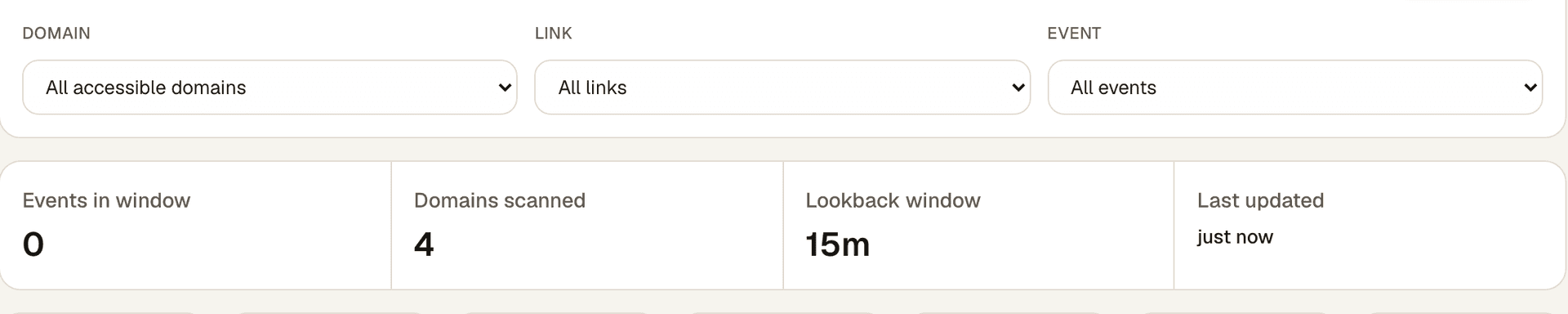
- Event-View only QR scans, only short URL clicks, hosted-page engagement, or virtual-card engagement.
Changing a filter reloads the whole live window with the filter applied. Bot-flagged traffic stays visible (labeled in the Traffic column); to compare bot-excluded counts, use the standard reporting views and their bot setting.
Realtime also includes recent hosted-page and card modules where available, such as Live pages and cards and top recent engagement events. These modules are for launch confirmation and debugging. Use AnalyticsPages, page Track, and card Engagement for stable reporting after rollups sync.
Live QR heatmap
When you set the Event filter to QR scan, Professional plans and above also unlock a Live QR heatmap module.
- The map shows recent QR scans by country for the same live window shown in Realtime.
- Companion lists show the top regions and cities in that same window.
- The heatmap is meant for near-live confirmation, not historical campaign reporting. Use the QR Performance page for the standard QR rollups and KPIs.
- Region and city values are best-effort and may appear as
Unknownwhen Nimriz cannot resolve them reliably.
Why clicks appear in Realtime before analytics reports
Nimriz uses a two-layer analytics architecture:
- Each click is written to Nimriz's analytics store (the real-time store) during the redirect request itself. This is what Realtime reads.
- Scheduled sync jobs aggregate Nimriz's analytics store events into reporting rollup tables. This is what your standard analytics reports read.
The sync is periodic-not instant. During a high-traffic campaign, you might see significant Realtime activity while your dashboard totals have not yet updated. This is expected behavior.
If you need stable numbers for reporting, use the standard analytics reports and exports. If you need immediate confirmation, use Realtime.
Realtime and bot traffic
Realtime shows all traffic by default, including clicks classified as bot traffic. Common sources of bot events you might see in Realtime:
- Messaging app previews-When someone pastes your link into iMessage, WhatsApp, Telegram, or Slack, the app automatically fetches the link to generate a preview card. This appears as a click in Realtime immediately after sharing.
- Security scanners-Corporate email filters and antivirus tools often follow links in emails before the recipient does.
- Social media crawlers-Twitter, LinkedIn, and Facebook crawl links to generate og:image previews.
When you see a burst of quick clicks from bot-flagged traffic immediately after sharing a link, this is normal. The Traffic column labels each event Bot or Human so you can tell them apart; for bot-excluded counts, use the standard reporting views.
Troubleshooting
Realtime is not showing any events even though the link redirects
- Confirm the link is redirecting on the correct domain. Host matching is strict-
links.example.comandwww.links.example.comare different. - Confirm you are in the correct workspace. Events are scoped to your active workspace.
- If the link is on a custom domain, confirm the domain is in Ready status. A domain that is only Verified (not Ready) may not be fully routing through Nimriz's edge.
- Try refreshing the Realtime view. The live stream requires an active browser connection.
Realtime shows clicks but my analytics dashboard still shows zero
This is normal during the period between a click and the next rollup sync. Wait a few minutes and the dashboard totals will catch up. If the discrepancy persists for more than 15–20 minutes after confirmed clicks in Realtime, contact support.
I see lots of bot traffic immediately after sharing the link
This is expected-see the bot traffic section above. Check the Traffic column to separate bot rows from human clicks.
Related guides
Related next steps
Ready to test this setup?
Create an account to try the workflow, or compare plans when the setup needs higher limits, integrations, or team controls.