
Spaces and tags
Organize large link libraries with spaces and tags so filtering, reporting, exports, and campaign cleanup stay easier to manage.
How spaces and tags work
Nimriz gives you two complementary tools for organizing links in your workspace: Spaces and Tags. They serve different purposes and are designed to be used together.
A Space is the primary container a link belongs to. A link can belong to at most one space. Think of spaces as buckets or folders-they represent the organizational home of a link (a team, a project, a client, or a product line).
Tags are lightweight labels you apply to a link. A link can have zero, one, or many tags. Tags are designed for flexible cross-cutting classification-channel, campaign type, workflow status, or any label that needs to span across multiple spaces.
The key difference: spaces are exclusive (one per link), tags are additive (unlimited per link).
Tags are available on Plus plans and above; spaces are available on Growth plans and above. Each plan also caps how many tags and spaces a workspace can create.
Spaces
What spaces are for
Spaces work best when links belong to clearly distinct operational areas:
- Team-based:
Marketing,Growth,Product,Engineering - Project-based:
Q2 Launch,Spring Campaign,App Redesign - Client-based (agencies):
Client A,Client B
Any member of the workspace can view links across all spaces. Spaces do not restrict access-they organize the view.
Creating a space
- Go to LibrarySpaces in your workspace.
- Click Add new space.
- Enter a name for the space and save.
You can also create a space inline with New space while assigning a link in the builder.
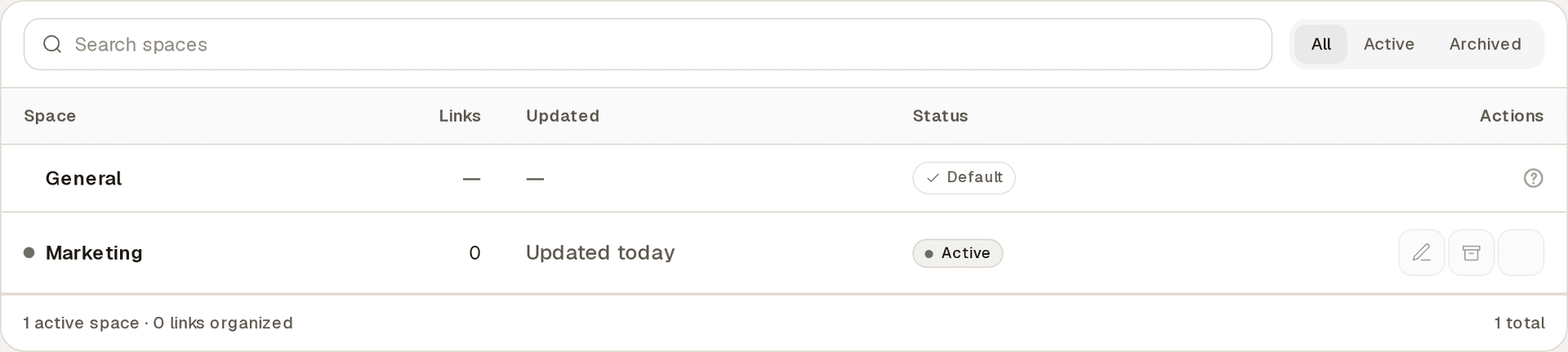
Assigning a link to a space
When creating a link, select the space from the Space dropdown in the link creation modal. For existing links, open the link's detail page and edit the space field.
A link can only belong to one space at a time. Selecting a new space replaces the previous one. You can also remove a link from any space by clearing the space field.
Renaming a space
- Go to LibrarySpaces.
- Click the Rename action next to the space name.
- Enter the new name and press ↵ to save.
Renaming a space changes its display name everywhere. All link assignments are preserved-the space's stable internal ID never changes, so links remain correctly assigned.
Archiving a space
Archiving prevents new links from being assigned to that space. Existing links that already belong to the archived space keep their assignment-they are not automatically moved.
Archived spaces remain visible in filters and exports so you can still work with historical data. To archive a space, go to LibrarySpaces and use the Archive action (archived spaces get a Restore action).
Deleting a space
A space can only be hard-deleted when no links are assigned to it. If links are still assigned, you must either move them to another space or remove their space assignment first.
Tags
What tags are for
Tags excel at cross-cutting classification where a single link might legitimately match multiple categories:
- Channel:
email,social,paid,organic,sms - Campaign type:
launch,nurture,retargeting - Content type:
video,blog,case-study - Workflow state:
active,review-pending,archived
Creating and managing tags
Tags are created in LibraryTags with Add new tag. You can also create tags inline when assigning them to a link during creation or editing.
Each tag has:
- A name (the visible label).
- An optional color for visual identification in the dashboard.
Adding tags to a link
When creating or editing a link, use the Tags field to select existing tags or type to create a new tag on the fly. You can add as many tags as needed.
Renaming and archiving tags
Like spaces, renaming a tag changes its display name everywhere. Existing assignments are preserved.
Archiving a tag prevents new assignments. Existing assignments are retained and remain visible in filters and exports.
Filtering your link library
In the main Links view, you can filter links by space and tag:
- By space: Click the space filter to show only links in a specific space.
- By tag: Click the tag filter to show only links with a specific tag.
- Filters can be combined: for example, links in the
Marketingspace taggedemail.
Filtering helps you quickly focus on a subset of links without affecting other team members' views.
Spaces and tags in exports
When you export your link catalog (as a CSV), spaces and tags are included as dedicated columns. This makes it easy to analyze your link organization in a spreadsheet or import into another system.
space_namecolumn: the name of the space the link belongs to (blank if unassigned).tagscolumn: a pipe-separated (|) list of tag names.
Spaces vs UTM campaigns
A common question: should I use utm_campaign or tags for campaign grouping?
Use utm_campaign when:
- You need external attribution across ad platforms, Google Analytics, or other tracking tools.
- The campaign label needs to appear in click-time analytics and exports for downstream reporting.
Use tags when:
- You need internal organization that does not need to propagate to external analytics.
- A link belongs to multiple grouping dimensions simultaneously (e.g.,
emailANDspring-launch). - You want to filter and browse your link library by campaign without affecting the link's destination URL.
Nimriz does not have a first-class Campaign entity. For campaign-level reporting, use utm_campaign on your destination URL alongside tags for workspace organization. See UTM parameters for full details.
Troubleshooting
A space is not appearing in the link creation dropdown
The space may be archived. Archived spaces are hidden from the new-assignment dropdown by default. Check LibrarySpaces and use Restore if you still need it.
I cannot delete a space
The space has one or more links still assigned to it. Open the link library, filter by that space, and either move those links to another space or clear their space assignment. Then retry the deletion.
Tags are not appearing in my export
Confirm you are exporting the link catalog (not just an analytics export). The link catalog CSV includes space and tag columns. Analytics exports contain click-level data and do not include organizational metadata like spaces and tags.
Related guides
Related next steps
Follow setup and reference guides for Nimriz products and integrations.
Quarter-end, a client wants every paid-search link from the Q2 launch and you are scrolling thousands. A spaces-and-tags playbook that survives a big library.
Ready to test this setup?
Create an account to try the workflow, or compare plans when the setup needs higher limits, integrations, or team controls.