
UTM parameters
Add UTM fields and custom query parameters to links, use presets, and understand current vs historical reporting.
What UTM parameters are
UTM parameters are standard query string fields that analytics and attribution platforms use to identify the source and context of a click. When you add UTM parameters to a link's destination URL, every visitor who clicks that link carries that attribution context to your website, enabling tools like Google Analytics, Plausible, or your own backend to attribute traffic correctly.
Nimriz treats UTM parameters as first-class fields-not just appended query strings. They are stored as structured metadata on the link and managed through a dedicated builder interface.
The five standard UTM fields
| Field | Purpose | Example |
|---|---|---|
utm_source | Where the traffic comes from | newsletter, twitter, google |
utm_medium | The marketing channel | email, social, cpc, organic |
utm_campaign | The specific campaign | spring-launch-2026, q2-nurture |
utm_term | The paid keyword (paid search) | link-shortener, branded-links |
utm_content | Differentiates variants in one campaign | cta-button, banner-top, text-link |
All five fields are optional. Use only the fields that are meaningful for your tracking setup.
Adding UTM parameters to a link
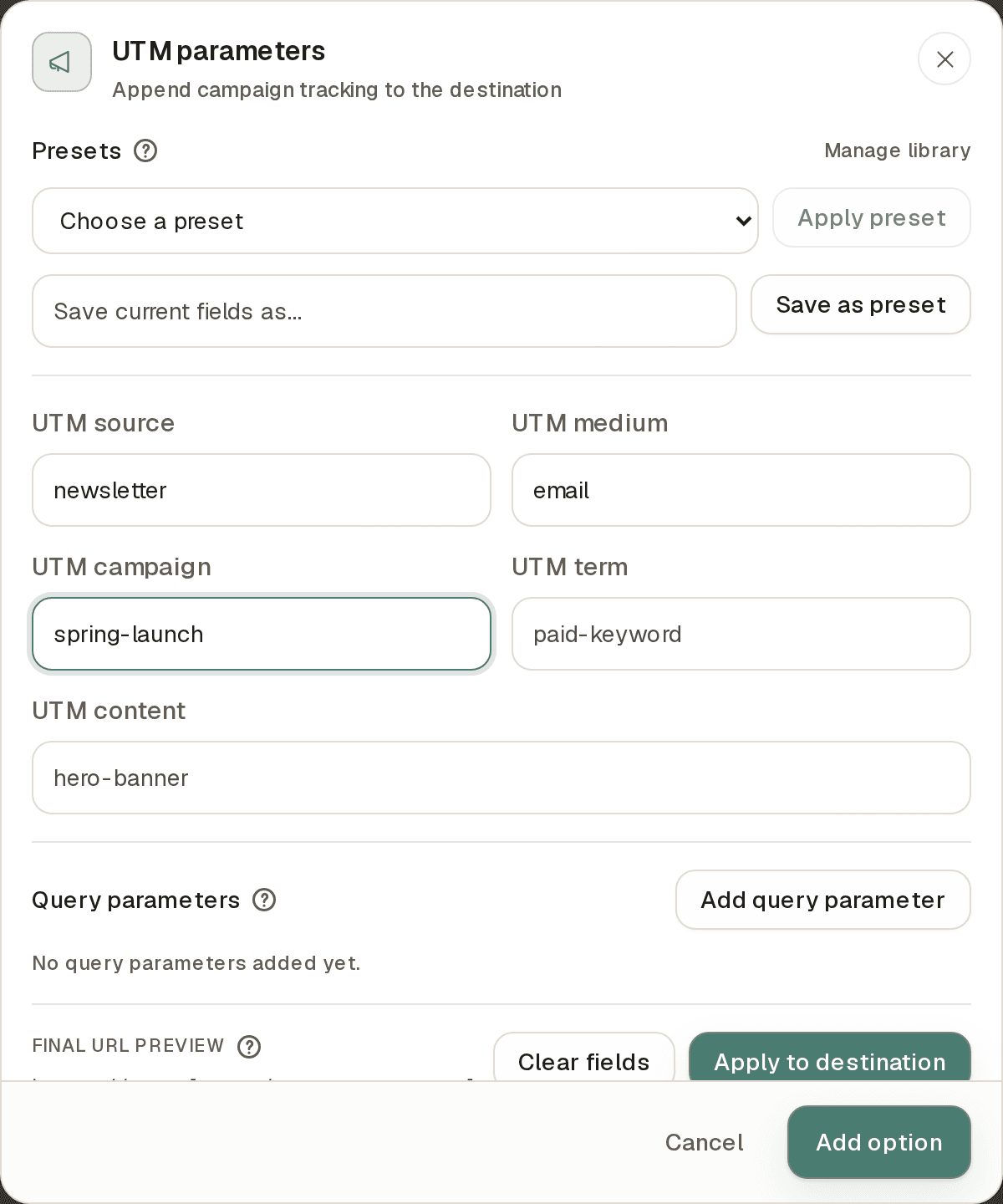
When creating a link, open Advanced options in the link builder and choose UTM parameters in the Campaign group. (The UTM builder is available on Plus plans and above; reusable presets start on Growth.)
You can paste a destination URL with UTM and custom query parameters on any plan. Nimriz carries supported nonblank parameters into the final destination and shows them in the UTM editor. Editing a field keeps the other imported values; choosing Clear fields removes them from the final destination.
- Fill in whichever UTM fields apply.
- Nimriz appends the fields to the destination URL in the canonical order:
utm_source,utm_medium,utm_campaign,utm_term,utm_content. - Empty fields are dropped-they do not appear in the final URL.
- The final destination URL shown in the preview reflects the combined result.
Example: A link to https://example.com/landing with utm_source=twitter and utm_medium=social will redirect visitors to:
https://example.com/landing?utm_source=twitter&utm_medium=social
Custom query parameters
In addition to the five standard UTM fields, Nimriz lets you define custom query parameters-additional key/value pairs that Nimriz stores as part of the link's destination metadata.
Custom query parameters behave like UTM fields in that Nimriz:
- Stores them as structured metadata (not just as part of the raw URL string).
- Includes them in the final destination URL alongside UTM fields.
- Carries them through imports and exports with explicit columns.
Custom query parameters appear after the standard UTM fields in the final URL.
When to use custom query parameters:
- Your analytics platform uses a non-standard attribution field (e.g.,
ref,affiliate_id,partner). - You need to pre-populate form fields or personalization tokens on your landing page.
- You use a pixel or event tracking system with its own parameter convention.
When not to use custom query parameters:
- For parameters that should be forwarded from the visitor's original click URL at redirect time-that is query forwarding, a separate feature.
UTM presets
UTM presets let you save a combination of UTM fields and custom parameters and apply them to any link with one click.
Creating a preset
- Go to LibraryUTM presets in your workspace.
- Click Add new preset.
- Fill in the UTM fields and any custom parameters you want to include.
- Give the preset a name (visible only within your workspace).
- Save the preset.
Blank values in presets
A preset field can be saved with an empty value. This is useful when you want the parameter key pre-populated in the link creation form but need to fill in the value per-link.
For example, a preset with utm_campaign blank will pre-fill the campaign field as empty, prompting the creator to type the campaign name before saving the link. The empty field is not included in the final URL until a value is provided.
Setting a default preset
You can mark one preset as the workspace default. When team members create a new link, the default preset's fields are pre-applied. This ensures consistent UTM tagging across your team without manual setup.
To set a default: go to LibraryUTM presets, find the preset, and use its Set as default action (the star next to the preset, or the Set as default checkbox in the preset editor).
Applying a preset
When creating or editing a link, open the UTM builder's Presets row, choose a preset from the dropdown, and click Apply preset. The preset's fields are applied to the current form. You can then adjust individual fields without affecting the stored preset-the preset is applied as a starting point, not a live link.
Canonicalization rules
Nimriz normalizes UTM fields before storing and serving them:
- Key names are lowercased.
UTM_SOURCEbecomesutm_source. - Blank values are dropped. Empty UTM fields do not appear in the final URL.
- Duplicate keys are resolved with last-write-wins if the same key appears multiple times.
- Field order in the final URL is always: standard UTMs first in the canonical order (
utm_source,utm_medium,utm_campaign,utm_term,utm_content), then custom query parameters in stable key order.
Current vs historical reporting
Nimriz distinguishes between a link's current UTM state and historical click-time UTM values.
Current state
The UTM fields stored on the link record represent the link's current configured values. When you edit a link's destination or UTM fields, the current state updates immediately. Future clicks will carry the new values.
Historical attribution
When a visitor clicked a link in the past, the UTM values that were active at that exact moment are captured as part of the click event and stored permanently. Editing the link's UTM fields after a click does not retroactively change the attribution context for those historical clicks.
This means:
- Your link detail analytics and exports show click-time UTM values for historical data.
- Changing
utm_campaignon a link today does not reassign old clicks to the new campaign.
This design ensures your historical attribution data is accurate and immutable.
Import and export
CSV import
When importing links from a CSV file, Nimriz accepts explicit columns for each UTM field: UTM parameters already in the destination URL are kept when you omit their columns. An included blank UTM cell removes that field from the destination.
| CSV column | Field |
|---|---|
utm_source | Source |
utm_medium | Medium |
utm_campaign | Campaign |
utm_term | Term |
utm_content | Content |
custom_query_params_json | Custom parameters as a JSON object |
CSV export
The link catalog CSV export includes all UTM fields and custom parameters as explicit columns, preserving the current state of each link. Exports follow the selected filters. If none of the selected options remain available for a filter, the export contains no link rows.
Analytics exports (click-level data) include the click-time UTM values as captured at the moment of each click-not the link's current state.
Troubleshooting
UTM parameters are not appearing on my destination URL
- Pasting a destination URL that already carries UTM parameters is fine: Nimriz extracts standard
utm_*parameters from the pasted URL and stores them as managed UTM fields. Check the final destination preview to confirm the values you expect. - Check that the fields were not blank-blank UTM fields are dropped from the final URL.
The UTM fields I set are not showing in analytics
- Your web analytics tool (Google Analytics, Plausible, etc.) needs to read UTM parameters from the landing page URL. Confirm the redirect is reaching the destination with the UTM parameters intact.
- If using strict privacy in Nimriz, remember that Nimriz analytics tracks the click. The UTM data flows to your destination analytics tool, not directly into the Nimriz analytics dashboard.
A preset is not applying all its fields
- If a field in the preset has a blank value, it will appear empty in the form after applying-this is intentional. Fill in the blank value before saving the link.
Related guides
Related next steps
Follow setup and reference guides for Nimriz products and integrations.
Use this campaign link planning template to define UTMs, branded links, QR paths, owners, destinations, and reporting checks before launch.
See how marketing and growth teams evaluate Nimriz for branded campaign links, QR tracking, routing, conversion reporting, integrations, and privacy-aware analytics.
Ready to test this setup?
Create an account to try the workflow, or compare plans when the setup needs higher limits, integrations, or team controls.