
Password-protected links
Require a password before redirect, decide when protected links fit, and troubleshoot visitor unlock prompts, cookies, and fallback behavior.
Prerequisites
- A workspace plan that includes password-protected links (currently Growth and above).
- Workspace Admin or Member role.
- When using the API: a valid workspace API key for link-management calls, and a secure server-side environment (never pass passwords from a browser).
How password protection works
Password protection inserts a secure server-side gate before the redirect. Here is the complete visitor flow:
- A visitor clicks your short link.
- Nimriz checks whether the link has a password. If it does and the visitor has no valid unlock cookie, instead of redirecting immediately, Nimriz serves a small password entry form.
- The visitor types the password and submits the form.
- Nimriz verifies the submitted password against a stored hash on its servers. Passwords are never stored as plaintext and are never returned in API responses or the dashboard.
- If the password is correct, Nimriz issues a signed, link-specific unlock cookie and redirects the visitor to the destination.
- On subsequent visits from the same browser, Nimriz finds the valid cookie and redirects immediately without showing the password prompt again. The unlock cookie is valid for up to 12 hours. Changing the password invalidates earlier unlocks, so visitors must enter the current password on their next visit.
Repeated password submissions can be temporarily throttled. When that happens, the visitor sees a safe "try again later" prompt and should wait before retrying.
Cookie scope: The unlock cookie is scoped to the exact link (url_id), domain, and short code. Unlocking one password-protected link on a domain does not unlock any other protected link on that domain. Each protected link requires its own unlock.
Link states
A password-protected link is always in one of three states from the visitor's perspective:
| State | What the visitor experiences |
|---|---|
| Unprotected | Immediate redirect, no password prompt. |
| Protected-locked | Password form is shown before redirect. |
| Protected-unlocked | Redirect proceeds immediately (valid cookie present in browser). |
State transitions:
- Adding a password:
unprotected → protected_locked - Correct password entry:
protected_locked → protected_unlocked - Changing the password:
protected_unlocked → protected_locked - Removing a password:
protected_locked / protected_unlocked → unprotected - Invalid or tampered cookie: treated as
protected_locked(prompt shown again)

Adding password protection in the dashboard
When creating a new link:
- In the link builder (New link), open Advanced options.
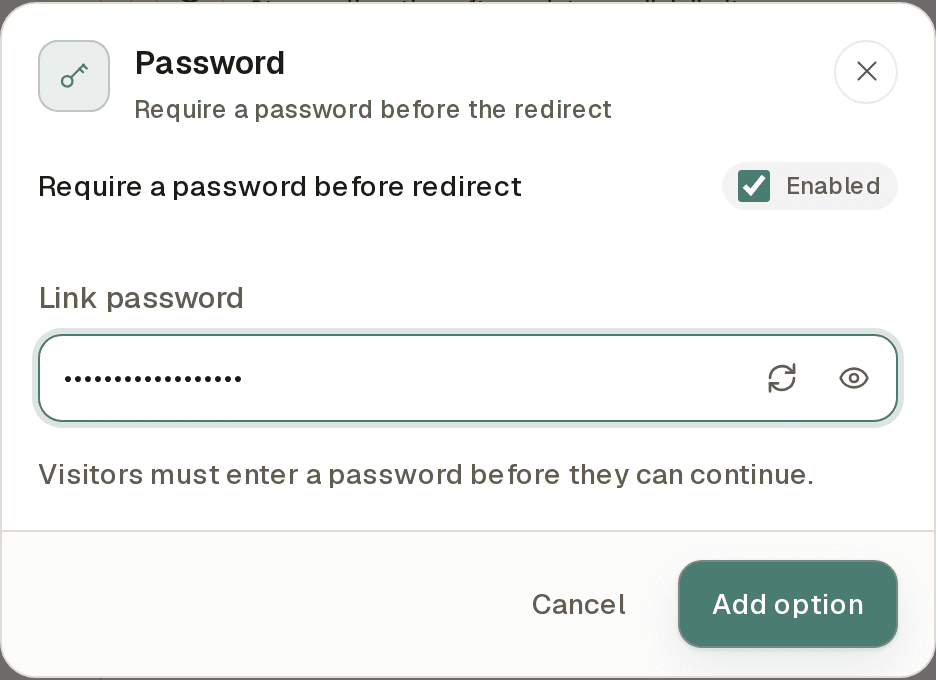
- In the Link group, choose Password.
- Turn on the Require a password before redirect toggle.
- Enter the password you want visitors to provide in the Link password field (or generate a random one), then click Add option.
- Complete link creation with Create link.
On an existing link:
- Open the link detail page for the link you want to protect.
- Open the Advanced options section.
- Find the Password settings panel.
- Enter a password and click Save password.
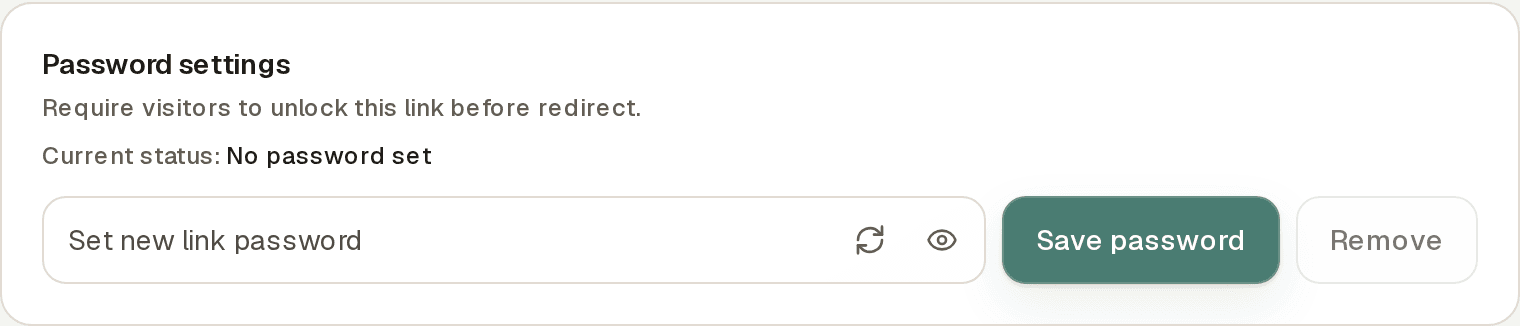
The password takes effect immediately. To remove protection from the dashboard, click Remove in the same panel.
Managing passwords via the API
Set or update a password
PUT https://api.nimriz.com/api/update-password
Authorization: Bearer <WORKSPACE_API_KEY>
Content-Type: application/json

{
  "url_id": "22222222-2222-2222-2222-222222222222",
  "password": "my-secure-password"
}
Successful response:
{
  "url_id": "22222222-2222-2222-2222-222222222222",
  "password_protected": true
}
Remove a password
PUT https://api.nimriz.com/api/update-password
Authorization: Bearer <WORKSPACE_API_KEY>
Content-Type: application/json

{
  "url_id": "22222222-2222-2222-2222-222222222222",
  "password": null
}
Passing null as the password removes protection entirely. The link reverts to immediate redirect behavior.
Create a link with password protection
Include the optional password field in a POST /api/shorten request:
{
  "domain_id": "00000000-0000-0000-0000-000000000000",
  "long_url": "https://example.com/secure-resource",
  "custom_slug": "internal-launch",
  "password": "launch-2026"
}
Security details
- No plaintext storage: Passwords are hashed on the server before being stored. The original plaintext is discarded immediately.
- No plaintext exposure: The API never returns a link's password-even to workspace admins. If a password is forgotten, the only option is to set a new one.
- Cookie tamper protection: Unlock cookies are cryptographically signed. A cookie from one link cannot be used to unlock a different link.
- Attempt throttling: Password submissions are rate-limited per protected link and per client to reduce brute-force attempts. If attempt protection is temporarily unavailable, new unlock attempts pause and the link remains protected. Wait briefly and try again.
- Server-side only: Always set and update passwords from a trusted backend. Never pass password values through browser-side code or expose them in front-end environment variables.
What happens when you change a password
When you update a link's password, previous unlock cookies stop granting access. On their next visit, everyone must enter the current password, including visitors who unlocked the link before the change.
Removing a password makes the link accessible without a password. If you add protection again, even with the same password, visitors must unlock the link again. Share the current password with your intended audience after each change.
Troubleshooting
The password prompt keeps reappearing for a visitor
Check these in order:
- Wrong password entered-the visitor may be mistyping the password. Confirm they are using the current password (not one from before a recent update).
- Password was recently changed-the visitor may be entering the old password. They must use the new password the next time they are prompted.
- The unlock cookie expired-unlock cookies are valid for 12 hours. After that, one re-entry of the password is expected.
- Too many attempts-the visitor may need to wait before trying again.
- Browser cookies are blocked-the unlock mechanism requires cookies. If the visitor's browser is blocking cookies or has a strict privacy setting, the unlock cookie may not be saved. Ask the visitor to check their browser cookie settings.
- Private/Incognito mode-cookies do not persist across incognito sessions in most browsers. The visitor will need to re-enter the password each time they open a new private window.
- Visiting a different protected link-each protected link requires its own separate unlock, and the browser keeps only the most recent unlock for each domain. Moving between two protected links on the same domain can show the prompt again on each switch.
The password protection option is locked in the dashboard
Password protection is plan-gated. If the Password option appears locked in the link builder, or the Password settings panel shows a notice that password-protected links are available on Growth plans and above:
- Confirm your workspace is on a plan that includes this feature.
- Contact your organization administrator to check your current plan and any workspace-level feature settings.
The API returns password_not_allowed when setting a password
Your workspace plan does not include password-protected links (the dashboard's own endpoints report the same condition as feature_not_enabled). Upgrade your plan or contact support to enable this capability for your account.
A redirect works in one browser but prompts for a password in another
This is expected behavior. The unlock cookie is stored per-browser and per-device. A visitor who unlocked the link on their laptop will need to enter the password again on their phone or a different browser-the cookie does not sync across devices.
Related guides
Related next steps
Follow setup and reference guides for Nimriz products and integrations.
How to use link expiration windows to protect campaign integrity, manage limited-time offers, and keep outdated destinations from spreading.
Gate links with passwords, set expiration windows, and keep fallback handling branded when a link is no longer valid.
The threat landscape for short links, plus practical controls that help keep branded link infrastructure clean and visitor trust intact.
Ready to test this setup?
Create an account to try the workflow, or compare plans when the setup needs higher limits, integrations, or team controls.