
Custom QR codes
Style, batch-download, automate, and troubleshoot link-backed QR codes, presets, logos, and regeneration behavior.
Custom QR codes in Nimriz
Every short link in Nimriz has a built-in QR code. On every plan you can customize its appearance with colors, shapes, gradients, and transparent backgrounds, then download styled PNG and SVG assets. A center logo and watermark removal start on Plus, and CTA layouts start on Growth.
Prerequisites
- A Nimriz workspace on a plan that includes the QR capabilities you need. Use Plan availability by tier below for the exact feature list on Starter, Plus, Growth, Professional, and Enterprise.
Plan availability by tier
Each higher tier includes the QR features from the tiers below it. Preset and frame limits here reflect the defaults on self-serve plans. Your Enterprise contract may add commercial or policy terms on top of this feature set.
Starter
- Full styled QR editor: colors, gradients, module shapes, corner eyes, and quiet zone.
- Transparent backgrounds in PNG and SVG exports.
- Download styled PNG and SVG assets for any short link.
- QR codes include a small Nimriz watermark.
Plus
- Everything in Starter.
- Upload a custom center logo.
- Remove the Nimriz watermark.
- Save 1 workspace QR preset and reuse it across links.
Growth
- Everything in Plus.
- Save up to 3 workspace QR presets and reuse them across links.
- Use all 7 built-in CTA layouts with preset CTA phrases.
- Set custom CTA text inside supported frames while keeping scan-readiness guidance visible.
- Open the QR Performance view in analytics for QR scans and QR-origin traffic.
- Run bulk QR ZIP exports from the Links table.
Professional
- Everything in Growth, with preset limits raised to 10 presets.
- Use the live QR heatmap on QR Performance and on Realtime when you filter to QR triggers.
- Call the customer QR API to generate assets and manage presets programmatically.
Enterprise
- Everything in Professional, with workspace preset capacity raised to 25 (the CTA layout library stays at 7), unless your agreement states otherwise.
How QR analytics work
When a visitor scans a Nimriz QR code, the platform automatically identifies the scan as QR-origin traffic.
Nimriz embeds a special parameter (?nr=qr) in the URL encoded into the QR image. When the Nimriz edge receives that request, it records the event with touch_type = qr_scan instead of short_link_click. This gives you separate visibility into QR scans versus standard short URL clicks in your analytics dashboard.

You can view QR performance directly in the dedicated QR Performance tab in your analytics dashboard (Growth+ plans), which isolates scans, QR-origin traffic share, and top QR-enabled links. On all plans, you can also filter the main analytics overview by Trigger = QR.
On Professional plans, the QR Performance view also includes a Live QR heatmap module. It uses the recent Realtime window to show a country heatmap plus top regions and cities for QR scans only.
The ?nr=qr parameter is stripped from the final destination URL-it never reaches your website or appears in your server logs. Your destination URL remains clean.
Live QR heatmap (Professional+)
The live QR heatmap is designed for short-window monitoring rather than historical reporting.
- It uses the same recent Realtime window as Nimriz's live analytics view.
- It appears on the QR Performance page and on Realtime when you filter
Trigger = QR. - It works at the full-workspace level, or when you scope the view to one domain or one link.
- Region and city values are best-effort and may show as
Unknownwhen the request metadata is incomplete.
Customization options
| Option | What you can customize |
|---|---|
| Foreground color | The color of the QR data modules (the dark squares and dots). |
| Background color | The color behind the QR pattern. Background gradients are supported, and transparent backgrounds are available on every plan. |
| Gradient | Apply a linear or radial color gradient across the foreground pattern, or use a gradient background behind the code. |
| Module shape | Change the style of individual data modules: squares, rounded modules, dots, smooth modules, vertical capsules, horizontal capsules, or diamonds. |
| Corner eye style | Customize the three large corner positioning markers independently from the data modules, including square, rounded, circular, diamond, and concave styles. Corners can inherit the code color or use their own color. |
| Logo | Upload a custom brand logo to be centered within the QR code. Nimriz automatically increases the error-correction level when a logo is used. Logo upload is available on Plus plans and above. |
| Watermark | Free QR codes include a small Nimriz watermark. Removing it is available on Plus plans and above. |
| Quiet zone | Adjust the white-space padding around the outer edge of the QR code. |
| CTA layout | Add reusable guidance around the QR code with editable colors, spacing, and CTA copy. Growth includes all CTA layouts and custom CTA text. |
Downloading your QR code
You can download any QR code in two formats:
SVG (Scalable Vector Graphics)
- Recommended for print materials, large-format displays, and any context where you need to scale without quality loss.
- Supports transparent backgrounds.
- Can be opened and further edited in vector design tools like Figma, Illustrator, or Inkscape.
PNG (raster image)
- Recommended for digital use: slide decks, email headers, documents, and social posts.
- Available in multiple pixel sizes (e.g., 512px, 1024px, 2048px).
- Supports transparent backgrounds (alpha channel).
- For print materials, use at least 1024px. For large-format printing, use SVG instead.
Rule of thumb: Always use the SVG format or the highest-resolution PNG when you are unsure of the final output size.
Bulk QR downloads
Growth and higher plans can queue a ZIP of QR assets directly from the main Links table.
- Select one or more links in the table and use the bulk QR action in the header.
- Nimriz renders each selected link from its saved effective QR state. That means saved presets, saved per-link overrides, transparent backgrounds, frames, and logos are all respected.
- The first dashboard bulk flow exports
pngfiles at 1024px and queues the ZIP in Exports so the job can finish in the background. - If some links fail to render, Nimriz still prepares the ZIP when at least one asset succeeds. The archive includes a
manifest.jsonfile with the success list, failed items, and the render-source metadata used for the job. - Bulk QR downloads do not create a separate QR inventory. They operate on the QR settings already attached to your links.
QR presets
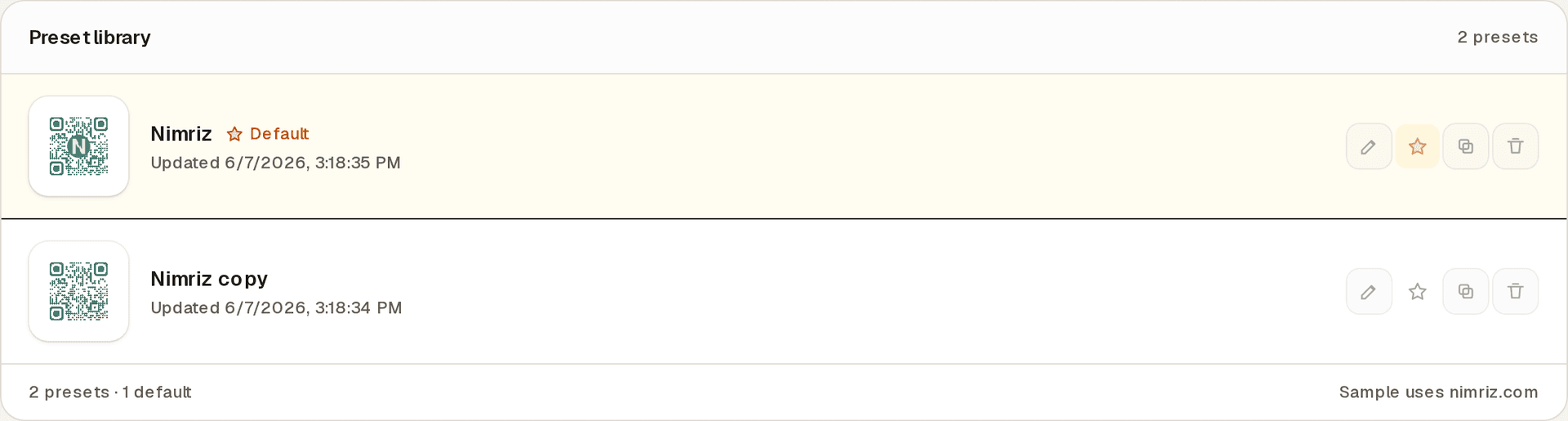
Presets let you save a QR design and apply it consistently across multiple links.
Creating a preset
- Go to LibraryQR presets in your workspace.
- Click Add new preset.
- Configure your colors, shapes, logo, and optional frame.
- Give the preset a name and save it.
Applying a preset
When creating or editing a link, open the QR section and select a preset from your workspace's preset list. The preset's design is applied to that link's QR code immediately.
Setting a default preset
You can designate one preset as the workspace default. When team members create new links, the default preset is applied automatically, ensuring brand consistency without requiring each person to manually select a design.
Overriding a preset
You can apply a preset and then adjust individual settings (e.g., change one color or swap the logo) without modifying the original preset. The override applies only to that specific link's QR code.
QR CTA layouts
CTA layouts add scan guidance around the QR code without changing the short URL behind the code.
What ships on Growth
Label bottomMinimal captionPill bottomLabel topCallout bottomCoupon bottomPoster panel- Bounded CTA phrases such as
Scan me,Learn more,Open link,View menu, andSave contact - Custom CTA text with the same scan-readiness guidance
CTA layout rules
- CTA layouts stay above or below the QR itself rather than covering the code.
- CTA text stays on one line.
- Nimriz keeps extra quiet-zone space around CTA layouts for scan reliability.
- The export you preview is the same layout Nimriz uses for downloads.
Design best practices for reliable scanning
Customization affects scan reliability. Follow these guidelines to improve scan success:
Use the Scan readiness card
The QR editor includes a Scan readiness card for visual checks before export. It checks the rendered design for decode, contrast, quiet zone, corner color, and logo risk. This card is advisory: it recommends safer design choices, but it does not prevent you from saving, applying, or downloading the QR design. It does not verify the destination URL, print surface, lighting, camera distance, glare, compression, or final placement.
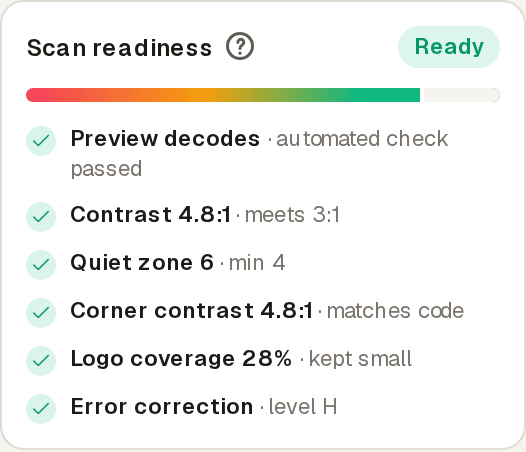
Treat a ready result as a design guardrail, then scan the final downloaded asset before publishing.
The card uses a fixed checklist so you can see how the design is evaluated:
| Check | What it means | How to improve it |
|---|---|---|
| Preview decodes | Nimriz renders the current preview and runs an automated browser decode check. | Increase contrast, increase quiet zone, simplify corners, reduce logo coverage, then scan the downloaded asset manually. |
| Contrast | The weakest foreground, background, and corner color combination should meet the visual threshold. | Use darker modules on a light background, or a light code on a dark background. Avoid similar shades. |
| Quiet zone | The blank border gives scanners room to find the QR boundary. | Keep at least the shown minimum. Framed layouts need more space than plain square QR codes. |
| Corner contrast | The three finder corners need enough contrast to be recognized quickly. | Let corners match the code color or choose a custom corner color with similar contrast. |
| Logo coverage | Center logos cover part of the QR matrix, even with error correction. | Keep the logo small, use a clean square logo, and avoid dense artwork that hides too many modules. |
| Error correction | Higher error correction helps when a logo or physical damage obscures part of the code. | Use level H when a logo is enabled. |
Ready means the automated visual checks look good. Review means the design is probably usable but has a weak signal worth improving. At risk means one or more checks failed and you should test the final asset carefully before publishing.
High contrast is critical
QR scanners work by detecting the contrast between light and dark modules. The greater the contrast, the more reliably the code scans.
- Use dark foreground on a light background, or vice versa.
- Avoid similar shades of the same color (e.g., dark grey modules on a medium-grey background).
- Test with your phone in low-light conditions if the code will be displayed outdoors or in dimly lit venues.
Keep the quiet zone intact
The quiet zone is the blank border around the QR code. Scanners need this space to locate the boundary of the code. If you reduce the quiet zone too aggressively or crop the image tightly, the code becomes unreliable.
Treat framed assets as full layouts
When you add a CTA layout, the exported asset may become taller than the raw square QR. Keep the full layout, CTA text, and whitespace intact when placing it into a design.
Logo sizing limits
Nimriz automatically increases the error-correction level when you add a logo, which provides some tolerance for the logo obscuring data modules. However, this tolerance is limited:
- Keep your logo to no more than approximately 20-25% of the total QR area.
- If the logo has a complex shape or dark background, add a white background plate behind it within the logo image before uploading.
- If your code is failing to scan and you have a logo, try reducing the logo size as the first troubleshooting step.
Always test before publishing
Always scan your final downloaded QR code with a standard smartphone camera app before:
- Printing on physical materials.
- Including in a large-format design.
- Publishing to a public audience.
Test on both iOS and Android. Test in multiple lighting conditions.
Troubleshooting
The QR code will not scan
Work through these steps in order:
- Low contrast-check your color choices. If foreground and background are too similar, increase the contrast. A simple black-on-white version is the best baseline when the encoded data itself is valid.
- Logo too large-remove the logo and test again. If the code scans without the logo, reduce the logo size or add a white plate behind it.
- Quiet zone too small-increase the quiet zone setting in your QR editor and re-download.
- Damaged or compressed image-if you downloaded a PNG and it was later compressed or resized by another tool, re-download at a higher resolution directly from Nimriz.
- Printer color matching-some print processes shift colors unpredictably. Test a physical print before ordering a large run.
The downloaded file looks different from what I designed
QR assets are generated on demand and may be cached. If you recently made changes (updated colors, swapped a logo, changed the preset) and the download looks outdated:
- Re-download the asset from the QR panel. Downloads always render from the saved design state, so a fresh download picks up your latest changes.
- Clear your browser cache and re-download.
Gradient, frame, or shape customization options are not visible
These are plan-gated features. If you do not see gradient, frame, or shape options in the QR editor, your workspace plan does not include that level of QR customization. Contact your organization administrator or check your plan details.
The QR links to the wrong destination
The QR code is tied to your short link. If your short link's destination has been updated, the QR code will automatically point to the new destination-no redesign or re-download needed. If the QR is going to the wrong place, check the destination URL on the link itself in your dashboard.
QR API
Professional and Enterprise plans can automate QR rendering and QR preset management through the Nimriz customer API.
Authentication
- Use the same workspace API key posture as the rest of the Nimriz customer API.
- Send the key in the
Authorization: Bearer <key>header.
Available endpoints
POST /api/v1/qr/generateGET /api/v1/qr/presetsPOST /api/v1/qr/presetsPUT /api/v1/qr/presets/:idDELETE /api/v1/qr/presets/:idGET /api/v1/links/:id/qrGET /api/v1/links/:id/analytics?touch_type=qr_scan
Behavior
POST /api/v1/qr/generaterenders a QR image for an existingurl_id. You can requestsvgorpng, control the size, force regeneration, and optionally provide a preset override or validated style override.GET /api/v1/links/:id/qrreturns the link's effective QR asset using the same deterministic rendering contract as the dashboard.GET /api/v1/links/:id/analyticsreturns QR-filtered daily totals and time-series points when you settouch_type=qr_scan.- Preset CRUD uses the same strict style schema and frame entitlement rules as the dashboard.
Notes
- The QR API does not bypass plan entitlements. If your workspace cannot use CTA layouts, custom CTA text, or QR API access in the app, the same request is blocked at the API layer.
- QR image generation remains deterministic for the same short URL and style input.
Related guides
Related next steps
Follow setup and reference guides for Nimriz products and integrations.
Generate branded dynamic QR codes from Nimriz short links with CTA layouts, scan-readiness guidance, transparent backgrounds, presets, bulk ZIP downloads, QR API endpoints, and scan-aware analytics.
Solve QR code tracking with branded short links, scan analytics, privacy-aware reporting, conversion paths, and campaign integrations in Nimriz.
The clear margin around a QR code or barcode that helps scanners locate it.
Ready to test this setup?
Create an account to try the workflow, or compare plans when the setup needs higher limits, integrations, or team controls.