
Virtual business cards
Create hosted digital contact cards with branded short links, QR codes, wallet actions, contact details, social profiles, and branded theming.
What are virtual business cards?
A virtual business card is a hosted digital contact page powered by a Nimriz short link and QR code. Instead of pointing your short link to an external website, you create a polished card page directly inside Nimriz. Recipients can view it on any device, tap to call or email, save your contact details to their phone, or add the card to Apple Wallet or Google Wallet.
Because the card is tied to a standard Nimriz short link, your QR code and branded URL stay the same even when you update your contact details. Print a QR on a business card, a conference badge, or a poster, then change your phone number, title, or company later without reprinting anything.
Plan availability
| Plan | Included | Card limit | Appearance |
|---|---|---|---|
| Starter | No | 0 | No |
| Plus | Yes | 3 | Signature, Editorial, and Spotlight templates, preset card styles, Light/Dark mode |
| Growth | Yes | 10 | Premium appearance: Minimal, Bold, and Custom colors |
| Professional | Yes | 25 | Premium appearance: Minimal, Bold, and Custom colors |
| Enterprise | Yes | Unlimited | Premium appearance: Minimal, Bold, and Custom colors |
Base virtual business cards start on Plus. Premium appearance controls start on Growth.
Creating a card
Card creation is a two-step flow with a live phone preview that updates as you build.
-
Go to Cards in the sidebar, then open Create card.
-
Step 1: pick a starting point. Choose a starter template (Professional, Founder, Sales, Consultant, Event, or Team Member) to prefill a theme, sample fields, and a suggested action, or choose Start from blank. Everything is editable in the next step.
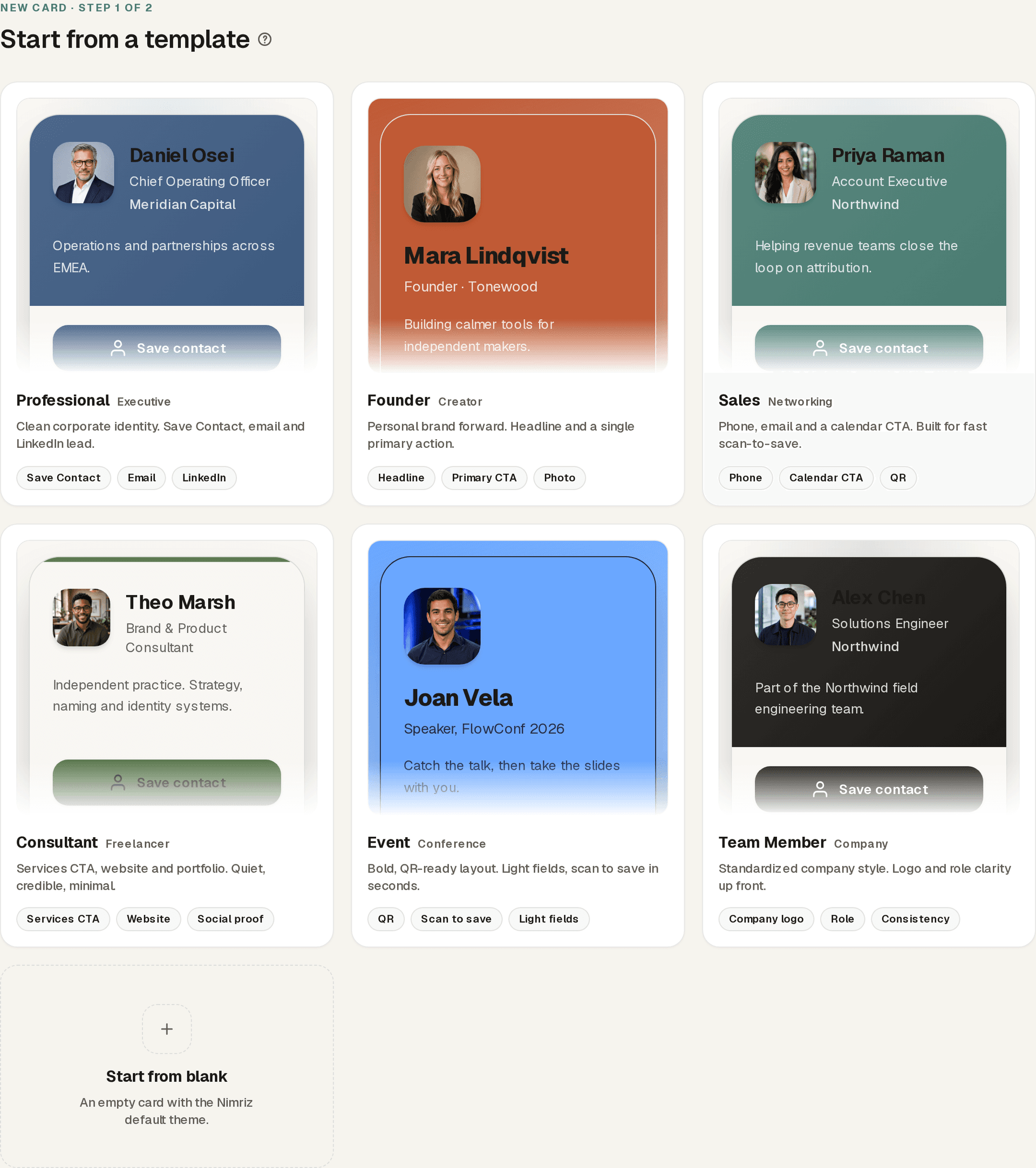
Step 1: six starter templates prefill a theme and sample fields, or start from blank. -
Step 2: build the card across five focused steps:
- Identity: name (required), title, company, headline, profile photo, and company logo.
- Contact: phone, email, website, and address, with an optional map link.
- Action: a primary call-to-action button and up to six social links (LinkedIn, Twitter/X, Instagram, Facebook, YouTube, GitHub).
- Appearance: layout treatment, card style, and Light or Dark mode.
- Link & QR: domain, optional custom slug, and QR preset.
-
A card strength meter next to the preview suggests what to add next.
-
Click Create card.
After creation, a success modal shows the short URL (auto-copied to clipboard), a QR code you can download immediately in PNG or SVG format, and wallet actions when Apple Wallet or Google Wallet is configured.
Editing a card
Go to Cards in the sidebar, then click the Edit card icon on any card. All fields can be updated at any time. Changes take effect immediately on the public card page, with no need to regenerate or reprint your QR code.
The edit page includes a live preview panel on the right that updates as you type.
The public card page
When someone visits your short link or scans the QR code, they are redirected to your hosted card page. This page is:
- Standalone: no Nimriz navigation or marketing chrome. It looks like a polished digital card, not a page inside a website.
- Mobile-first: designed for the phone-scan use case. Tappable contact actions, one-tap save, wallet actions, and social icons with brand colors.
- No login required: recipients do not need a Nimriz account.
The card page includes:
| Element | What it does |
|---|---|
| Hero section | Shows your photo/initials, name, title, company, and headline. Styled according to your chosen template and colors. |
| Save contact | Downloads a .vcf file (vCard 3.0) containing your name, title, company, phone, email, website, address, and social profiles. Works on iOS, Android, and desktop. |
| Wallet actions | Adds the card to Apple Wallet or Google Wallet when wallet providers are configured for the workspace. The pass barcode opens the same Nimriz short link used by your QR code. |
| Primary action | An optional branded button linking to a URL you choose (e.g., booking page, portfolio, or landing page). |
| Contact actions | Tappable rows for phone (calls directly), email (opens mail client), website (opens in browser), and address (opens in maps). |
| Social links | Brand-colored icon buttons for each platform you added. |
Card style presets
Instead of manually picking individual colors, Nimriz provides curated color presets that guarantee a cohesive, professional look. Each preset defines a coordinated accent, background, and text color.
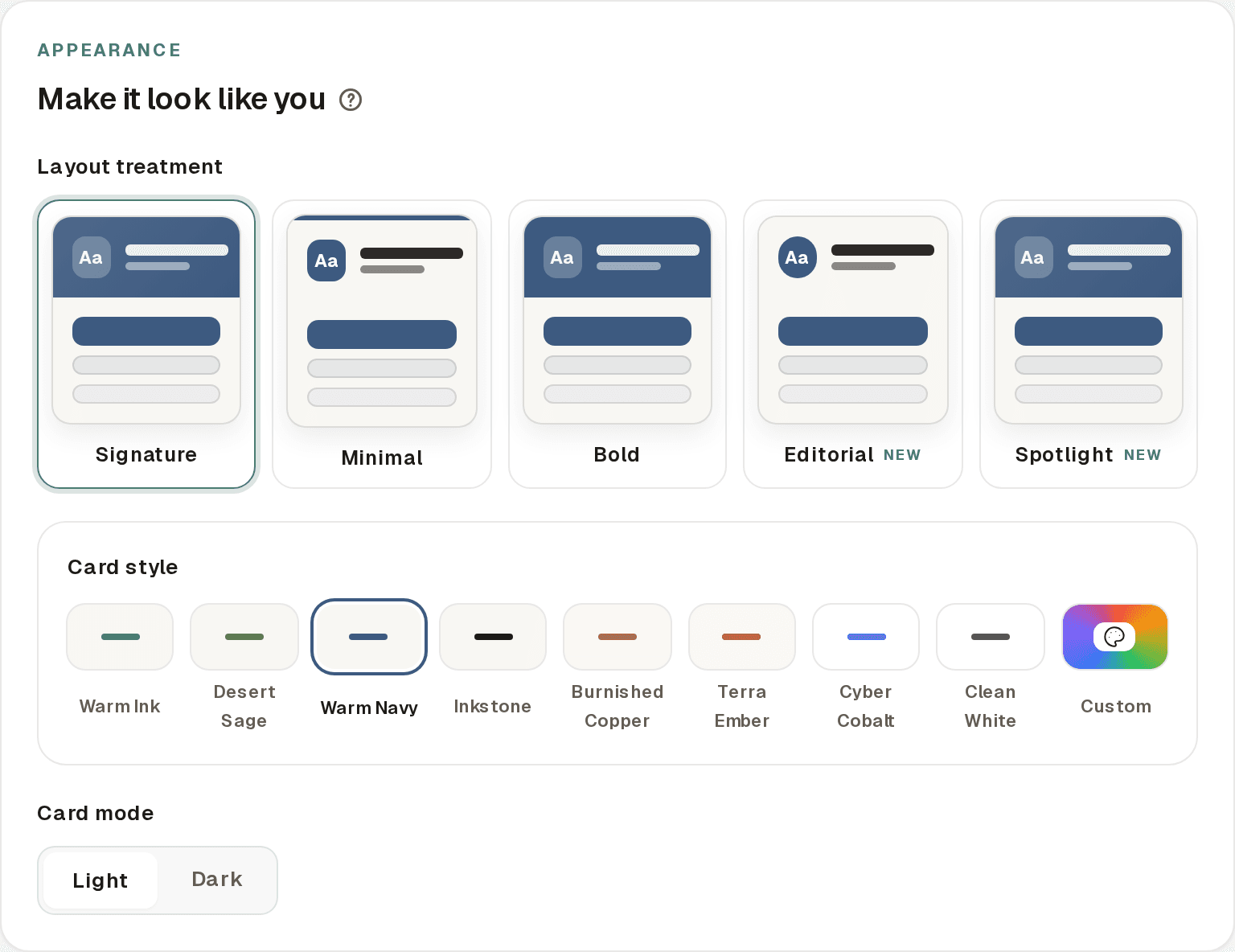
Available presets
| Preset | Light mode | Dark mode |
|---|---|---|
| Warm Ink | Teal accent on warm cream | Teal accent on deep black |
| Desert Sage | Muted green accent on warm white | Soft green on dark charcoal |
| Warm Navy | Deep blue accent on warm white | Medium blue on dark charcoal |
| Inkstone | Monochrome dark on warm cream | Monochrome light on deep black |
| Burnished Copper | Warm copper accent on cream | Lighter copper on dark charcoal |
| Terra Ember | Warm orange-red on cream | Coral accent on dark charcoal |
| Cyber Cobalt | Bright blue on white | Sky blue on deep navy |
| Clean White | Neutral grey on white | Grey on pure black |
New cards default to Warm Ink in Light mode.
Custom colors
Select Custom at the end of the preset row to open individual pickers for accent, background, and text color. You can pick from swatches or enter an exact hex value.
If you select a preset and then manually change one of the colors, the selection automatically switches to Custom.
Custom colors are available on Growth, Professional, and Enterprise.
Card mode (Light / Dark)
Each preset has a light and dark variant. Toggling between Light and Dark applies the corresponding variant of your selected preset. This is creator-controlled: the recipient always sees the mode you chose, regardless of their own device settings.
Templates
Templates (shown as Layout treatment in the builder) control the visual layout and emphasis of your card, independent of colors. Signature, Editorial, and Spotlight are available on all card plans. Minimal and Bold are premium appearance options on Growth and above:
| Template | What it looks like |
|---|---|
| Signature | Gradient-colored hero header with a balanced contact details section below. The most visually balanced option. |
| Minimal | No colored hero background. The accent color is used only for a thin top border and the Save Contact button. More whitespace, quieter overall. Best for conservative or corporate use. |
| Bold | Solid accent-colored hero that fills the top of the card with stronger visual presence. Larger name text. An accent-tinted body section below. Best for personal branding and creative professionals. |
| Editorial | Flat masthead hero with an oversized name and a kicker drawn from your company or title, divided from a prominent headline. Reads like a profile. |
| Spotlight | Full-bleed cover (your profile photo, or an accent gradient when there is no photo) with the action sheet floating over the bottom of it. |
Every treatment reads the same card fields, so you can switch between them at any time without losing content. Any template works with the card styles available on your plan. Custom colors are part of premium appearance.
Card pages gallery
Open Card pages from the switch at the top of the Cards create view to see all five treatments side by side, rendered from a single sample. Use the style and Light/Dark controls to preview how each treatment looks with a given card style before you build. It is a preview surface only and does not change any saved card.
QR code and short link
Every virtual business card is backed by a standard Nimriz short link. This means:
- The QR code encodes your branded short URL (e.g.,
https://rix.to/jane). - QR scans are tracked separately from direct link clicks using Nimriz's
touch_typeclassification (qr_scanvsshort_link_click). - You can customize the QR design using your workspace's QR presets, the same presets you use for any other short link.
- Updating your card content never changes the short link or QR. Print once, edit forever.
Downloading the QR
From the card create success modal, the Share card action, or the card edit page, you can:
- Share the short URL directly to common apps.
- Download the QR as PNG or SVG.
- Open Customize QR to adjust colors, shapes, logos, and presets.
- Copy the short URL to share directly via text, email, or messaging apps.
Choosing a QR preset during card creation
The Link & QR step includes a QR preset selector. Choose No preset for the plain default code, or pick any of your workspace's saved QR presets, shown with live scannable thumbnails. To design a new code with its own colors, pattern, and frame, open Design a custom QR, which takes you to your QR presets library. The selected preset is applied to the underlying short link, so the QR is ready to download from the success modal and carries through to printed assets.
Profile image and company logo
You can add a profile photo for the person and a company logo for the organization. These are separate assets:
- Upload: Click the upload button and select a PNG, JPEG, or WebP image. The image is stored securely and served from Nimriz infrastructure.
- Import URL: Switch to URL mode and import a direct image URL. Nimriz checks the file before saving it.
- Use website icon: For company logos, Nimriz can fetch the favicon from your website and copy it into card storage when it passes image checks.
The profile image appears as the person avatar. The company logo appears beside the company name and is used for Wallet pass branding when available. If no profile image is provided, the card displays your initials in a colored badge.
Image requirements are shown in the ? tooltip beside each field. Both profile photos and company logos support PNG, JPEG, and WebP up to 2 MB and 2048 x 2048 px. Profile photos must be at least 160 x 160 px, with 320 x 320 px or larger recommended. Company logos must be at least 128 x 128 px, with 256 x 256 px or larger recommended.
Save Contact (.vcf)
When a recipient taps Save contact, their device downloads a vCard file containing:
- Full name, first name, last name
- Company and title
- Phone number
- Email address
- Website URL
- Address
- Social profile links (as
X-SOCIALPROFILEfields) - Headline (as a note)
The vCard uses version 3.0 for maximum compatibility across iOS, Android, Google Contacts, and Outlook. Names and other contact text retain international characters.
Apple Wallet and Google Wallet
When wallet support is configured, recipients can tap Add to Apple Wallet or Add to Google Wallet on the public card page. Creators can also use those actions from the card creation success modal or the card edit page.
Wallet passes use the same hosted card as their source of truth:
- The pass shows compact identity details from the card.
- The pass uses the company logo when one is available.
- The pass barcode opens the existing Nimriz short link with QR-origin tracking and a bounded Apple or Google source marker.
- QR scans from the pass stay connected to the same link and card analytics.
- Wallet barcodes use Apple and Google native QR rendering for compatibility. Custom Nimriz QR styles apply to downloaded and printed QR assets.
- The Nimriz-hosted public card remains canonical.
If you edit a card after someone has added it to a wallet, the public card updates immediately. Installed wallet passes can be re-added to pick up the latest saved pass details unless automatic wallet updates are enabled for your team. The .vcf Save contact action remains the best universal fallback for contacts apps, desktop users, and devices that do not support Apple Wallet or Google Wallet.
Analytics
Virtual business cards produce two layers of analytics:
Redirect-layer analytics
When someone clicks your short link or scans the QR, the Nimriz edge records a standard click event. This event includes:
touch_type: eitherqr_scanorshort_link_click- Wallet provider source for Wallet QR scans when available
- Country, region, city (IP-based, privacy-aware)
- Device category, browser, OS
- Referrer
These events appear in your standard link analytics dashboard.
Card engagement analytics
After the recipient lands on your card page, additional events are tracked:
| Event | When it fires |
|---|---|
virtual_business_card_viewed | When the card page loads |
contact_saved | When the recipient downloads the .vcf file |
wallet_pass_requested | When the recipient taps an Apple Wallet or Google Wallet action |
These events are written through a privacy-aware analytics pipeline. IP addresses are hashed with a daily-rotating salt before storage when standard privacy analytics are enabled.
CTA tap tracking
Taps on individual contact actions (call, email, website, address, social), wallet actions, and the primary action button are tracked as card engagement events. The card detail Engagement tab shows a scan-to-save funnel and CTA engagement breakdown. AnalyticsPages includes card views, saves, QR funnel performance, and top pages and cards.
Social links
You can add up to six social profile links. Each platform gets a brand-colored icon button on the public card:
| Platform | Icon color |
|---|---|
| Blue | |
| Twitter / X | Black |
| Gradient (yellow to purple) | |
| Blue | |
| YouTube | Red |
| GitHub | Black |
Social links are also included in the downloaded .vcf file as X-SOCIALPROFILE fields.
Sharing your card
There are several ways to share your virtual business card:
| Method | How |
|---|---|
| QR code | Download and print the QR on business cards, badges, presentations, or posters. |
| Short URL | Copy and paste the branded short URL into emails, messaging apps, or social bios. |
| Apple Wallet | Add the card to Apple Wallet when Apple Wallet pass issuance is configured. |
| Google Wallet | Add the card to Google Wallet when Google Wallet pass issuance is configured. |
| Direct card URL | The Nimriz-hosted public card URL can also be shared directly, though the short URL is recommended for tracking. |
Managing cards
Cards list
The Cards section in the sidebar shows all your workspace's cards. Each row displays:
- Profile image or initial
- Full name and company
- Short URL
- Quick actions: Preview card, Edit card, Share card (short URL, preview, and QR tools), Delete card
Deleting a card
Click the delete icon on a card in the list. This removes the card record. The underlying short link remains in your Links list and can be repurposed or deleted separately.
Related guides
Related next steps
Follow setup and reference guides for Nimriz products and integrations.
Create hosted virtual business cards with wallet actions, one-tap contact save, branded QR sharing, and engagement analytics.
Share PDFs through branded document pages with aggregate view and download events, optional lead capture, and a link you can keep when the file changes.
Ready to test this setup?
Create an account to try the workflow, or compare plans when the setup needs higher limits, integrations, or team controls.