
Two-factor authentication
Set up TOTP two-factor authentication, manage recovery codes, handle workspace enforcement, and recover access when challenges fail.
Prerequisites
Before setting up two-factor authentication:
- An active Nimriz profile with a verified email address.
- An authenticator app installed on your mobile device. Compatible apps include:
- Google Authenticator (iOS, Android)
- Authy (iOS, Android, desktop)
- 1Password (iOS, Android, desktop)
- Microsoft Authenticator (iOS, Android)
- Any TOTP-compatible authenticator app.
- For workspace-level enforcement: you must be a Workspace Admin.
How TOTP works
Nimriz 2FA uses Time-based One-Time Passwords (TOTP). TOTP generates a new 6-digit code every 30 seconds using a shared secret key stored in your authenticator app. When you log in, Nimriz asks for the current code from your app. Since the code changes every 30 seconds and depends on the exact time, a captured code cannot be reused by an attacker.
The 6-digit code is valid for approximately 30 seconds. If your code is rejected, check that your device's clock is accurate (TOTP codes are time-sensitive-even a 60-second clock drift can cause failures).
Setting up TOTP
- Go to SettingsProfile in the dashboard.
- Find the Two-factor authentication section.
- Click Set up TOTP.
- Nimriz displays a QR code (plus a manual setup secret if you cannot scan).
- Open your authenticator app and scan the QR code. The app adds a new Nimriz entry and begins generating codes.
- Enter the current 6-digit code from your authenticator app to verify that setup worked correctly.
- Click Enable TOTP.
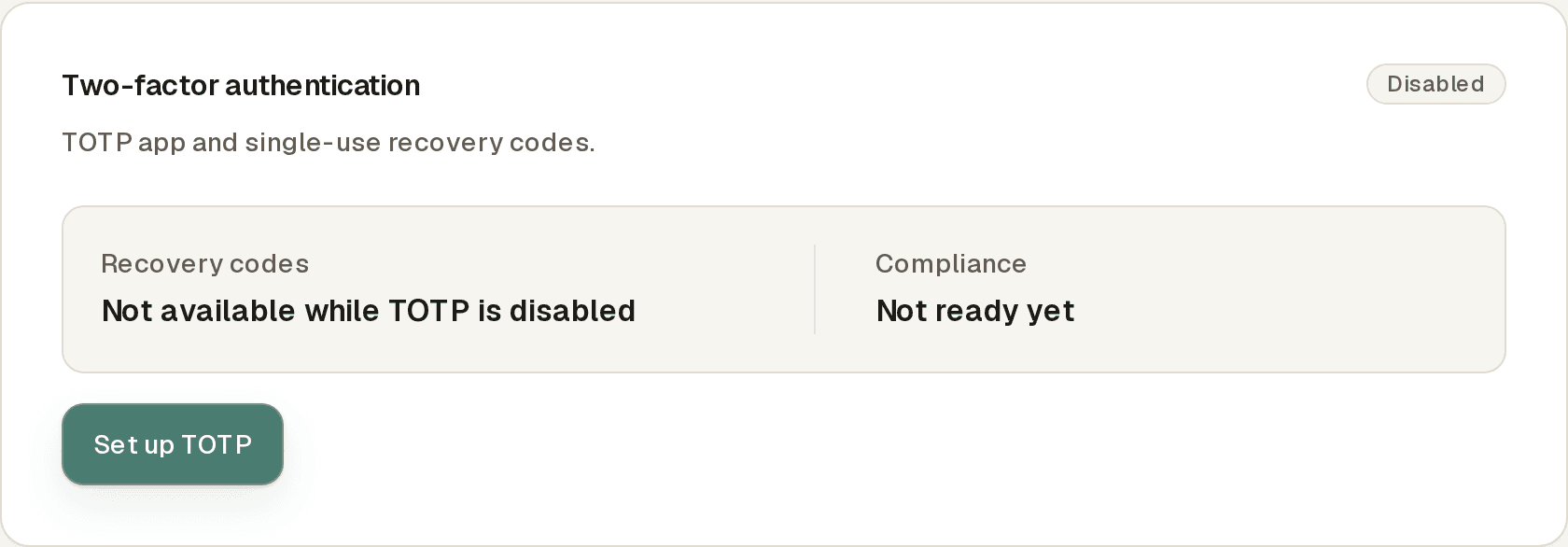
Save your recovery codes before leaving this page. After enrollment is confirmed, Nimriz shows you a set of single-use recovery codes. Copy them and store them securely somewhere you can access even if your phone is unavailable (a password manager is ideal). These codes are your only option if you lose access to your authenticator app.
Recovery codes
Recovery codes are one-time-use backup sign-in codes for emergencies.
- You receive one set of recovery codes immediately after TOTP enrollment.
- Each code can only be used once-it is invalidated as soon as you use it.
- Generating a new set of recovery codes immediately invalidates all previous unused codes. Do not generate new codes unless you need to (e.g., after using several and running low, or after a security concern).
- Recovery codes are only displayed at generation time. Once you navigate away, they cannot be retrieved again.
- Store them in a password manager or other secure offline location.
How to use a recovery code
At the 2FA challenge screen after login, click Use a recovery code instead and enter one of your unused recovery codes. You are signed in, and that code is permanently consumed.
After using a recovery code to sign in, immediately review your 2FA setup-if you used a code because you lost your authenticator app, reconfigure TOTP with your new device as soon as possible.
The login challenge
When 2FA is enabled on your account, every sign-in requires a second step:
- Enter your email and password (or use Google/SAML).
- After primary authentication succeeds, you are presented with a 2FA challenge screen.
- Enter either:
- The current 6-digit code from your authenticator app, or
- One unused recovery code.
- After the challenge is satisfied, you are signed in to the dashboard.
Workspace-level 2FA enforcement
Workspace Admins can require all members of a workspace to have TOTP enabled. Workspace-level 2FA enforcement is available on eligible plans; the Workspace 2FA enforcement card tells you if your current plan does not include it.
Before enabling enforcement
Before enabling enforcement, you can review member compliance:
- Go to SettingsTeam.
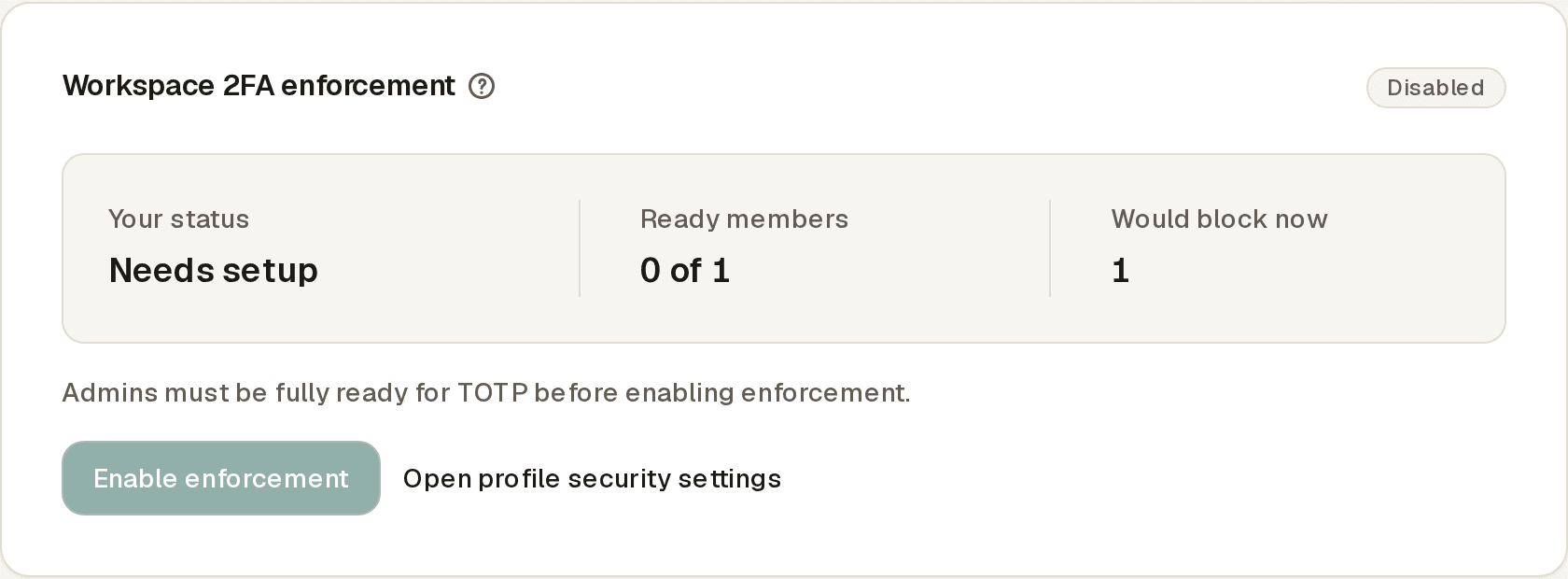
- Find the Workspace 2FA enforcement card. It shows your own status, how many members are ready, and how many would be blocked immediately.
- Each row in the Workspace members list also shows that member's 2FA status.
This preview step lets you communicate the requirement to non-compliant members before enforcement takes effect. Note that you (the enabling Admin) must be fully TOTP-ready yourself-the Enable enforcement button stays disabled until you are.
Enabling enforcement
- Go to SettingsTeam and find the Workspace 2FA enforcement card.
- Click Enable enforcement.
- Confirm your choice.
Enforcement takes effect immediately upon confirmation. There is no grace period.
What happens to non-compliant members
When enforcement is active and a non-compliant member attempts to log in or switch to the enforced workspace:
- They are blocked from accessing workspace content.
- They are shown a remediation flow prompting them to set up TOTP before continuing.
- Once they complete 2FA enrollment and pass the challenge, their access is immediately restored.
API access: Workspace-scoped API requests from non-compliant members are also rejected when the target workspace enforces 2FA.
Disabling enforcement
Disabling workspace enforcement does not remove any member's existing TOTP setup. It only removes the mandatory requirement. Members who already have 2FA enabled will continue using it-they just will not be blocked if they had not set it up.
Modifying or disabling your TOTP
To generate new recovery codes or to disable 2FA on your profile, Nimriz requires you to verify your identity first:
- Go to SettingsProfile and find the Two-factor authentication section.
- Click the action you want (Regenerate recovery codes or Disable TOTP).
- Nimriz prompts for your current password and a valid authenticator code (or one unused recovery code).
- After verification, the action is applied.
This step-up verification protects against an attacker who has physical access to your unlocked browser session.
Troubleshooting
My 6-digit code is being rejected
- Clock drift-TOTP codes are time-dependent. If your device clock is off by more than 30–60 seconds, your codes may be invalid. Check your device's date and time settings and ensure automatic time synchronization is enabled.
- Wrong entry-confirm you are using the Nimriz entry in your authenticator app, not a code from a different account.
- Code expired-codes are valid for approximately 30 seconds. If you wait too long after the code generates, it may have already expired. Wait for the next code to generate and enter it immediately.
I lost my authenticator app
If you still have your recovery codes:
- At the 2FA challenge screen, click Use a recovery code instead.
- Enter one of your unused recovery codes.
- After signing in, immediately go to SettingsProfile and reconfigure TOTP with your new device from the Two-factor authentication section.
If you no longer have any valid recovery codes and cannot access your authenticator app, you must contact Nimriz support to request an account-level factor reset. Support will verify your identity through other means, remove your existing TOTP factor, and prompt you to set up a new one on your next login.
I am blocked from a workspace due to 2FA enforcement
The workspace you are trying to access requires 2FA and your profile does not yet have it enabled. Follow the on-screen remediation prompts to set up TOTP. Once you successfully enroll and complete the challenge, access to the workspace is restored automatically.
Workspace enforcement blocks access after I already had 2FA set up
This can happen if:
- Your TOTP setup became invalid (e.g., you reset your phone without backing up the authenticator app).
- An admin recently reconfigured the enforcement policy in a way that requires re-verification.
Use a recovery code to sign in, then reconfigure TOTP from Settings → Profile.
Related guides
Related next steps
Ready to test this setup?
Create an account to try the workflow, or compare plans when the setup needs higher limits, integrations, or team controls.