
Workspace switching
Switch workspaces intentionally, understand the active workspace context, and fix access or membership issues without editing the wrong account.
Understanding the active workspace
When you are logged in to Nimriz, your session always has one active workspace. Every action you take-creating links, viewing analytics, changing settings-applies to the active workspace.
The dashboard clearly displays:
- Your active organization name.
- Your active workspace name.
- Whether your current access is from direct workspace membership or inherited organization-level admin rights.
This explicit display is intentional. Nimriz does not infer which workspace you mean or mix data across workspaces. If you create a link while workspace A is active, that link belongs to workspace A even if you also belong to workspace B.
How to switch workspaces
- Click the workspace switcher-the control showing your current workspace name at the top of the dashboard sidebar.
- A menu lists the workspaces available to you (workspaces pending deletion appear as unavailable).
- Click the workspace you want to switch to.
- The dashboard reloads in the context of the new workspace.
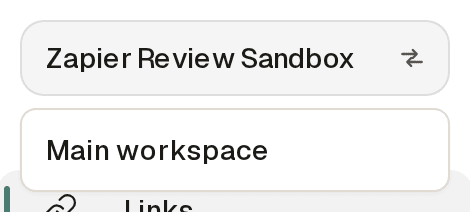
To switch organizations (if you belong to more than one), use the account menu in the bottom-left corner of the sidebar instead: it shows your active organization and a Switch organization list.
After switching:
- All links, analytics, domains, and settings you see belong to the workspace you switched to.
- Any new links you create will belong to the new active workspace.
What is workspace-scoped
Everything that changes when you switch workspaces:
- Links and link analytics
- QR codes and QR presets
- Spaces and tags
- Custom domains (and the domain grants associated with that workspace)
- Workspace API keys and conversion signing secrets
- Webhooks
- Team members and their roles
- Workspace-level 2FA enforcement policy
- Feature settings specific to the workspace
What does not change when you switch workspaces:
- Your personal profile and appearance settings
- Your two-factor authentication configuration
- Organization-level settings such as billing and org members
2FA enforcement during workspace switching
If a workspace requires all members to have Two-Factor Authentication (2FA) enabled, and you have not yet set up 2FA on your profile, you cannot switch into that workspace.
When this happens:
- Nimriz detects that the target workspace enforces 2FA but your profile is not yet compliant.
- The switch is refused with a message explaining that the workspace requires two-factor setup.
- Set up TOTP from SettingsProfile (and complete the two-factor challenge for your session), then switch again.
- Your previous active workspace remains unchanged until the switch succeeds.
Troubleshooting
A workspace I was invited to is not showing in the switcher
- Confirm you accepted the workspace invitation using the link sent to your email. Simply receiving an invite email is not enough-you must click Accept invitation and complete the join flow.
- Make sure you accepted the invite with the exact email address that was invited. If you logged in with a different email, the workspace membership was not created for your current session.
- If you accepted the invite but still do not see the workspace, try refreshing your browser session by logging out and logging back in.
I can see the workspace in the switcher but cannot access it
- The workspace may enforce 2FA and your profile may not be compliant yet. Follow the on-screen remediation prompts to set up two-factor authentication.
- Your role in the workspace may have been changed or your membership removed. Contact your workspace Admin or Org Admin.
I switched workspaces but the data looks the same
- Confirm the workspace name shown in the sidebar workspace switcher changed. If it did not, the switch may not have completed-try clicking the workspace in the switcher again.
- If the workspace name changed but the data looks identical, you may have identical links or settings in both workspaces. Verify by checking a workspace-specific setting such as the domain list.
Related guides
Related next steps
Ready to test this setup?
Create an account to try the workflow, or compare plans when the setup needs higher limits, integrations, or team controls.