
Team invites and roles
Invite teammates, choose workspace roles, understand the capability matrix, and handle expired or mismatched invitations.
Workspace roles
Every member of a workspace is assigned exactly one of three roles. Roles determine what actions they can take within that workspace.
Full capability matrix
| Capability | Admin | Member | Viewer |
|---|---|---|---|
| View dashboard and workspace data | ✓ | ✓ | ✓ |
| Create and update links | ✓ | ✓ | - |
| View link analytics | ✓ | ✓ | ✓ |
| Manage domains granted to the workspace | ✓ | - | - |
| Invite new teammates | ✓ | - | - |
| Resend or revoke pending invites | ✓ | - | - |
| Change a member's role (up to Admin) | ✓ | - | - |
| Remove members | ✓ | - | - |
| Enable or disable workspace 2FA enforcement | ✓ | - | - |
| Manage workspace billing and plan settings | ✓ | - | - |
There is no workspace Owner role. Owner-level authority is handled by the Organization Owner role at the org level.
The last remaining Admin is protected. A workspace must always have at least one Admin. Nimriz will block any action that would remove or demote the last Admin in a workspace.
Inviting a new teammate
Only Workspace Admins can send invitations. Team members and invites are available on paid plans.
- Go to SettingsTeam in your workspace dashboard.
- Click Invite teammate.
- Enter the teammate's email address and select the role they should receive.
- Click Send invite.
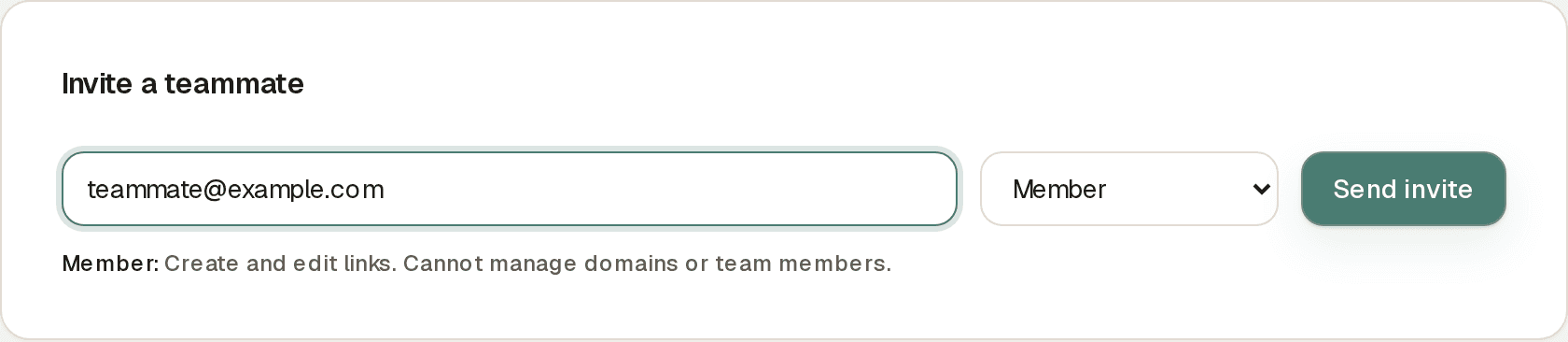
Nimriz sends an invitation email containing:
- Your workspace name.
- Who sent the invite.
- The email address being invited.
- The role they will receive.
- A secure Accept invitation link.
- The expiration time of the invite.
Invitations expire after 7 days. If the invitee does not accept within that window, the invite expires and you will need to resend it.
Resending and revoking invites
Pending invites are visible in the Pending invites section of SettingsTeam.
- Resend: Sends a new invitation email with a fresh 7-day validity window. The previously issued invite link is immediately invalidated-only the new link will work.
- Revoke: Immediately invalidates the invite link. The invitee will see an error if they try to use the old link.
There can only be one active pending invite per email address per workspace. Resending replaces the previous one.
Invite states
| State | What it means |
|---|---|
| Pending | Invite sent, not yet accepted. The link is active and valid. |
| Accepted | The invitee clicked the link, authenticated, and joined the workspace. Invite is used and cannot be reused. |
| Expired | The 7-day validity window passed without the invitee accepting. A new invite must be sent. |
| Revoked | An Admin manually cancelled the invite. The link no longer works. |
How the invitee accepts
The invitee receives an email and clicks Accept invitation. On the invite landing page:
- The page shows the workspace name, who sent the invite, the invited email address, and the role they will receive. The invited email address is fixed-it cannot be changed.
- The invitee authenticates using one of these paths:
- Continue with Google or Continue with Microsoft-the account's email must exactly match the invited email. If they are signed in with a different account, the page flags the mismatch and acceptance is blocked until they switch.
- Continue with invited email-the invitee enters their password if they already have a Nimriz account. If they do not have an account yet, the button reads Set password and continue and they set a password on this screen and join directly.
- Continue with SSO-shown when the invited email's domain is routed to an organization SAML provider.
- After successful authentication, the invite is accepted:
- Their workspace membership is created.
- Their active workspace switches to the newly joined workspace.
- They are redirected to the workspace dashboard.
If the invited workspace enforces 2FA and the invitee has not yet set up two-factor authentication, they are blocked from workspace content immediately after acceptance and prompted to complete 2FA enrollment from their profile security settings first.
Changing a member's role
- Go to SettingsTeam.
- Find the member in the Workspace members list.
- Use the role dropdown next to their name to change their role.
- Changes take effect immediately.

Admins can only assign roles up to Admin level. Org Owner and Org Admin roles are managed at the organization level, not from this workspace settings page.
Removing a member
- Go to SettingsTeam.
- Find the member.
- Click the Remove member action next to their name. The removal takes effect immediately.
Removing a member revokes their workspace access immediately. Their data and links remain in the workspace-only their access is removed.
You cannot remove the last Admin in a workspace.
Troubleshooting
An invitee says they cannot accept the invite
- Invite expired: If more than 7 days have passed, resend the invite from the Pending invites section of SettingsTeam.
- Invite was revoked: Send a new invite.
- Wrong email account: The invitee may be signed in to Google or Microsoft with a different account than the one invited. They need to use the exact email address the invite was sent to. The invite page shows the invited email clearly.
- Already a member: If the invitee has already accepted and is a member of the workspace, the invite page offers a Continue to workspace action instead of the join flow. They can also find the workspace in their workspace switcher.
A member accepted the invite but the workspace is not appearing for them
The most common cause is that the invitee's active workspace was not switched to the new workspace after acceptance. Ask them to use the workspace switcher to find and switch to your workspace. See Workspace switching.
I cannot change a member's role
You may only be a Member or Viewer in this workspace. Only Admins can change roles. If you need admin access, ask your organization administrator.
Related guides
Related next steps
Ready to test this setup?
Create an account to try the workflow, or compare plans when the setup needs higher limits, integrations, or team controls.