
Account settings
Manage workspace name, profile details, email, password, appearance, and connected auth methods.
Settings overview
The Nimriz settings navigation is grouped by scope: Organization (visible to organization members; billing, governance, members, domains), Workspace (settings that affect the workspace you are currently in), and Personal (profile, appearance, and privacy settings that affect your individual account across all workspaces).
This guide covers the workspace and personal scopes. Changes in workspace settings apply to the entire workspace. Changes in profile settings apply only to you, regardless of which workspace you are in. For the organization scope, see Organizations and workspaces.
Settings → Workspace (workspace settings)
These settings are scoped to the current active workspace. Only workspace Admins can make changes here. (Older links to "Settings → Account" redirect to this page.)
Workspace name
The workspace name appears in:
- The workspace switcher and profile menu.
- Invitation emails sent to new team members.
- Deletion confirmation prompts.
To rename the workspace:
- Go to SettingsWorkspace.
- Click the Edit workspace name (pencil) action on the Workspace name card.
- Edit the name (maximum 120 characters).
- Click Save workspace name.
Who can rename the workspace: Admins only. Members and Viewers cannot change the workspace name.
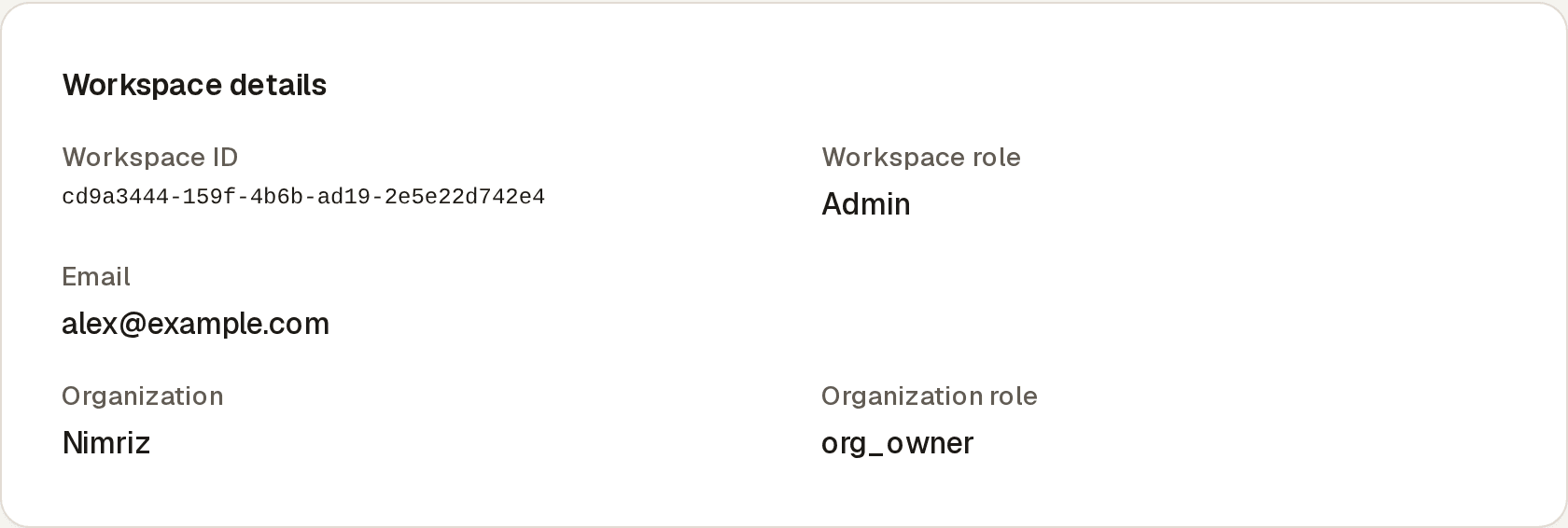
Workspace details
The Workspace details card shows these read-only fields for reference:
- Workspace ID: the stable UUID for your workspace. Use this when contacting support or when referencing your workspace in API calls that require a workspace identifier.
- Workspace role: your current role in this workspace.
- Email: the email of your signed-in profile.
- Organization and Organization role: shown when the workspace belongs to an organization.
The separate Analytics governance card shows your plan name, whether the workspace uses workspace-managed or strict analytics privacy, and which analytics features your plan includes (see Analytics and privacy for details).
Workspace deletion
The Delete workspace panel at the bottom of SettingsWorkspace contains the workspace deletion option. See Workspace and profile deletion for the full deletion lifecycle, grace period, and recovery process.
Settings → Profile (personal settings)
These settings affect your individual user identity. They apply across all workspaces you belong to.
Display name
Your display name is your first and last name as shown in:
- The dashboard header and account menu.
- Team member lists in workspaces you belong to.
- Invitation context when you invite others.
To update your name:
- Go to SettingsProfile.
- Edit the First name and Last name fields.
- Click Save changes.
Both fields are optional. If you leave a field blank, that part of your name is removed. Each field is limited to 120 characters. The same card also lets you upload a profile picture.
Email address
Your email address is your primary identity credential in Nimriz. It determines which workspace invitations you can accept.
Changing your email:
- Go to SettingsProfile.
- Enter a new email address in the Email field.
- Click Save changes to initiate the change.
- A confirmation email is sent to the new address.
- The email change is not final until you click the confirmation link in that email.
- Until confirmed, your current email remains active and the profile page shows "Pending confirmation for" the new address.
Important notes:
- If you are signed in via Google, your Nimriz email is linked to your Google account's email. Changes to your Google account email may affect how you sign in.
- If your organization uses Enterprise SSO, your email is controlled by your identity provider. Contact your IT administrator for email changes.
- You cannot change to an email address already used by another Nimriz account.
Password
If you have a password on your account, you can change it from SettingsProfile.
- Go to SettingsProfile.
- Click Change password.
- Enter your current password.
- Enter your new password (minimum 8 characters), then enter it again to confirm.
- Click Update password.
If you are locked out (cannot access your current session, or do not know your current password): use the Forgot password flow instead of the in-settings password change. The password form also links to it as "Need a recovery link instead?".
If you signed in with Google or Microsoft: A password is not set on your account by default. To add one, use the Forgot password recovery flow for your email address to set a password; afterwards you can sign in with either method. All sign-in methods for the same email address map to the same Nimriz profile (see Auth model).
Settings → Appearance
Appearance settings are personal and do not affect other workspace members.
- Mode-Light, Dark, or Same as device (follows your operating system setting).
- Color theme-Pick from Nimriz's available color theme presets.
Changes apply immediately and are saved to your profile, so they follow you across signed-in sessions.
Security: two-factor authentication
Security settings live on your profile page, SettingsProfile:
- Two-factor authentication (2FA)-Set up, manage, or disable TOTP and recovery codes from the Two-factor authentication card. See Two-factor authentication for full instructions.
Understanding scope: personal vs workspace
A common source of confusion is which settings are personal and which are workspace-level.
| Setting | Scope | Who can change it |
|---|---|---|
| Workspace name | Workspace | Admins only |
| Analytics privacy mode | Workspace (set by org policy or workspace default) | Admins |
| Your display name | Personal | You only |
| Your email address | Personal | You only |
| Your password | Personal | You only |
| Appearance (theme, color) | Personal | You only |
| Two-factor authentication | Personal | You only |
| Workspace 2FA enforcement | Workspace | Admins only |
Troubleshooting
I cannot edit the workspace name
You must be a workspace Admin to rename the workspace. If you are a Member or Viewer, ask an Admin to make the change.
My email change is not taking effect
Email changes require confirmation via the link sent to the new address. Check your inbox (and spam folder) for the confirmation email. The change remains pending until you click that link.
I cannot change my password because I do not know my current one
If you signed in exclusively via Google, Microsoft, or Enterprise SSO, a password may not be set on your account, and the in-settings change form requires your current password. Use the Forgot password recovery flow to set a password for the first time.
My display name is not updating in team lists
Display name changes may take a moment to reflect across all surfaces. Try refreshing the page. If the issue persists after a few minutes, contact support.
Related guides
Related next steps
Ready to test this setup?
Create an account to try the workflow, or compare plans when the setup needs higher limits, integrations, or team controls.