
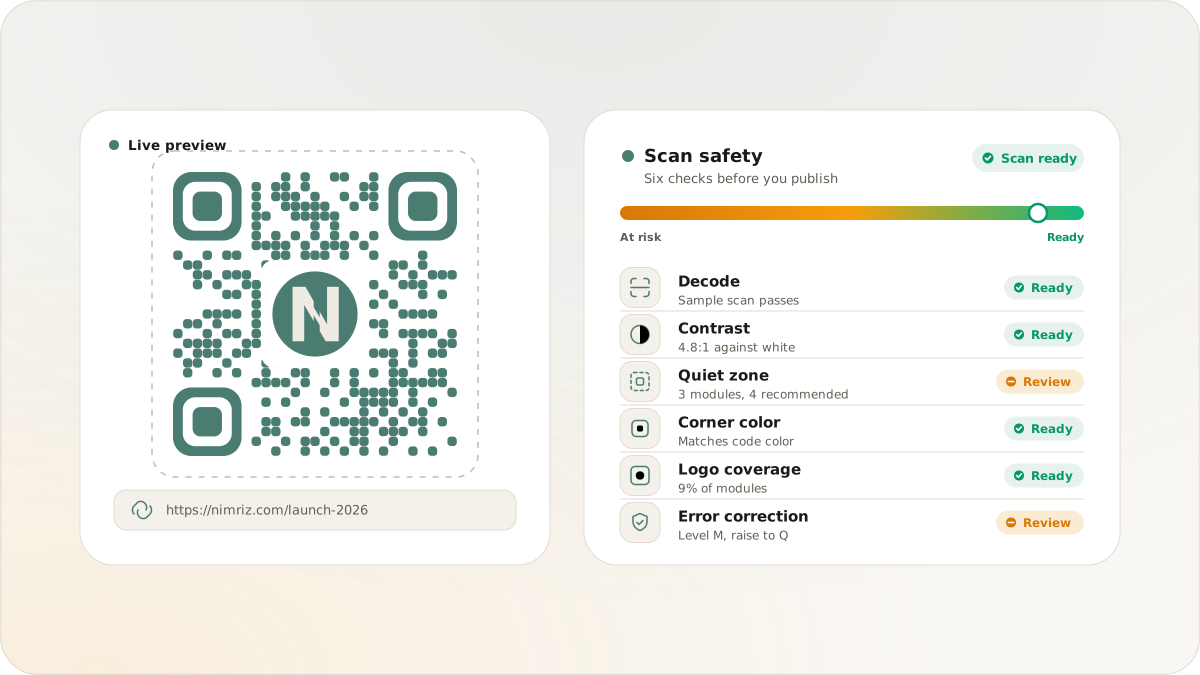
A styled QR code can look polished and still be hard for a scanner to read. The usual causes are small: the brand color is too close to the background, the quiet zone got cropped, a center logo covers too much of the matrix, or custom corners make the finder patterns harder to recognize.
Scan readiness is a practical way to catch those visual risks before a code leaves the dashboard. It is not a security scan, a destination check, or a promise that every printed placement will work. It is an advisory review of the rendered QR design.
One signal is weak. The design can still be saved, but it is worth improving before print.
What Scan readiness checks
Nimriz keeps the checklist fixed so you know exactly how the card is evaluating the design.
Preview decodes
The editor renders the current QR preview and runs an automated browser decode check. If that check cannot read the preview, simplify the design first: increase contrast, increase quiet zone, use simpler corner styling, or reduce logo coverage.
This is still a software preview. You should scan the final downloaded PNG or SVG on real devices before a campaign goes live.
Contrast
Scanners read the difference between the QR modules and the surrounding background. The readiness card looks at the weakest foreground, background, and corner color combination instead of only the first selected color.
If contrast is marked for review, darken the code color, lighten the background, or avoid using similar shades across gradients.
Quiet zone
The quiet zone is the blank border around the QR code. It gives scanners enough space to find the code boundary. Framed QR layouts need more room because the call-to-action sits near the QR asset.
If the quiet zone is marked at risk, increase it in the editor and avoid cropping the exported asset tight to the code.
Corner contrast
The three finder corners are the large markers scanners use to orient the code. If you customize corner color separately from the module color, those corners still need strong contrast against the background.
When in doubt, let corners match the code color.
Logo coverage
A center logo covers part of the QR matrix. Error correction can tolerate some coverage, but it is not unlimited. Keep logos simple, centered, and small.
If a logo warning appears, reduce the logo size or upload a cleaner square version with enough internal padding.
Error correction
When a logo is enabled, use high error correction. Nimriz recommends level H for logo-bearing designs because the logo and real-world damage both consume error-correction budget.
Ready, Review, and At risk
The card uses three advisory labels:
- Ready means the automated visual checks look good.
- Review means one or more signals are weak, but the design may still be usable.
- At risk means a check failed and the design needs manual testing before you publish.
These labels do not block saving, applying, downloading, or creating a preset. They are there to help you make an informed design choice before print or launch.
What it does not check
Scan readiness does not validate the destination URL. It does not check for phishing or malware. It does not know the final print material, lighting, viewing distance, glare, compression, or the camera quality people will use.
That is why final QA still matters:
- Download the final asset.
- Scan it on iOS and Android.
- Test it at the expected print size and distance.
- Check it in the lighting where people will actually scan.
- Keep the full exported asset, including quiet zone and any CTA frame.
How to use it in practice
Treat Scan readiness as a dashboard checklist. If it says Ready, you have a good starting point. If it says Review, improve the weak row when you can. If it says At risk, do not assume the design is broken, but do test the final asset carefully before committing it to print.
For the complete product instructions, see the custom QR codes docs. For layout-specific guidance, see QR frames and CTA layouts, and for print sizing, see QR code sizing.