
Generating one QR code is simple. Generating 50 for a product launch, 200 for a conference, or 1,000 for a retail chain - each with its own destination, branding, and tracking - requires a system, not a point-and-click workflow. Bulk QR operations exist for teams that work at this scale, where manually downloading QR codes one at a time would consume hours of operational time.
This guide covers the bulk QR workflow in Nimriz: multi-select exports from the dashboard, how ZIP files are structured, the rendering semantics that determine what each exported QR looks like, the API surface for programmatic generation, and the plan requirements for different operational tiers.
The multi-select bulk download workflow
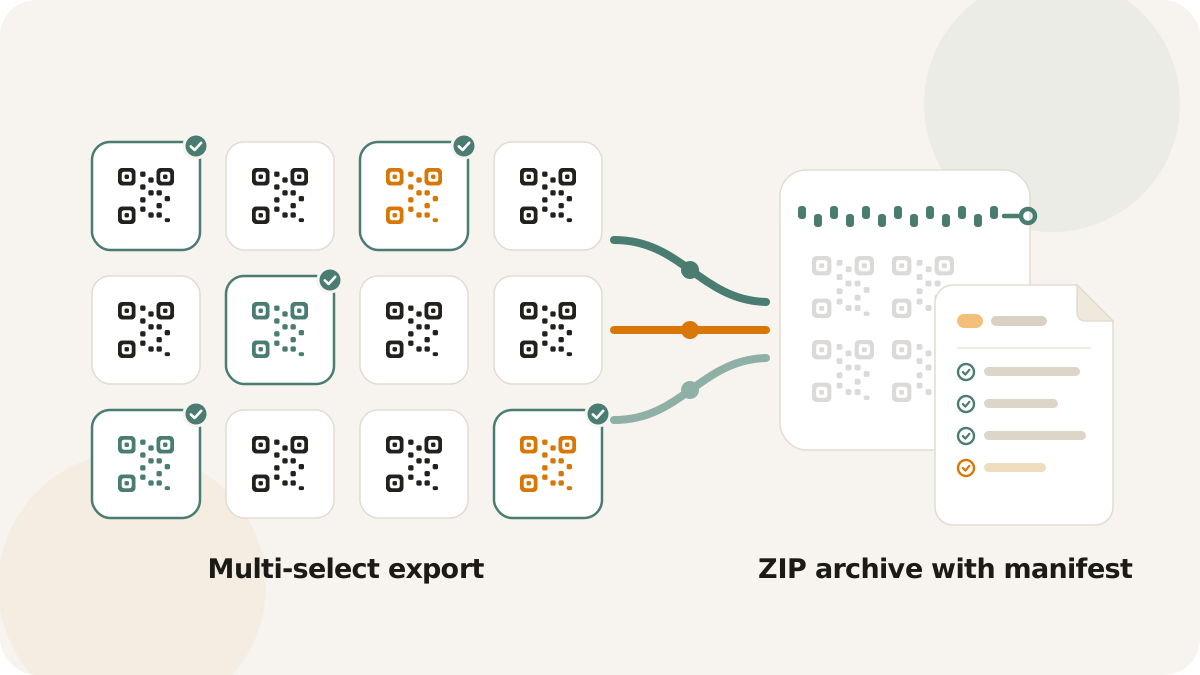
The dashboard supports selecting multiple links and exporting their QR codes as a single ZIP download. The workflow:
- Select links. In the links list, use the multi-select checkboxes to choose the links you want QR codes for. You can select individually or use the select-all option for the current filtered view.
- Initiate bulk export. With links selected, trigger the bulk QR download action. Nimriz queues the rendering job and begins generating QR code images for each selected link.
- Download the ZIP. When rendering completes, the browser downloads a ZIP file containing all generated QR codes plus a manifest file.
The process handles each QR code as an independent render job. This means each code in the batch can have different customization settings - different colors, logos, error correction levels, and CTA layouts - based on how each individual link's QR settings were configured.
ZIP file structure and the manifest
The downloaded ZIP file contains two types of content:
QR code image files. One PNG file per link, named using the link's slug for easy identification. If your links are links.yourbrand.com/product-a, links.yourbrand.com/product-b, etc., the files are named accordingly.
manifest.json. A JSON file at the root of the ZIP that describes the contents of the export. The manifest includes:
- The total number of QR codes requested
- The number successfully rendered
- The number that failed (if any)
- For each QR code: the link slug, destination URL, file name in the ZIP, and render status
The manifest serves as both a receipt and an audit trail. When you hand off a ZIP of 200 QR codes to a print production team, the manifest lets them verify completeness without opening every image file.
Preset vs. override rendering semantics
Each QR code in a bulk export renders from its saved state - the customization settings that were last applied to that specific link's QR configuration. This is a deliberate design choice.
When you customize a QR code for a specific link - setting brand colors, adding a logo, choosing an error correction level, applying a CTA layout - those settings are saved to the link. When that link is included in a bulk export, it renders with those saved settings. There is no batch-level override that forces all codes in the export to look the same.
This means bulk export is safe for heterogeneous sets. If you have 50 links where 30 use your standard brand template and 20 use a campaign-specific style, the bulk export produces 30 codes in the standard style and 20 in the campaign style. Each code faithfully represents its individual configuration.
For teams that want visual consistency across a batch, the workflow is: configure one link's QR settings to your desired look, save that as a QR preset, apply the preset to all the links you want to batch export, then run the bulk download. The preset ensures uniformity; the bulk export renders each code from its (now-uniform) saved state.
Partial failure reporting
In a batch of hundreds of QR codes, individual render failures are possible - a link might have an invalid configuration, a missing resource, or a transient rendering error. The bulk export system handles this gracefully.
The manifest.json includes a status field for each QR code in the batch. Successfully rendered codes have a success status. Failed codes have a failure status with a reason. The ZIP still downloads with all successful codes included; failed items are reported in the manifest so you can address them individually.
This design means a single failure does not block the entire batch. If you export 200 codes and 198 succeed, you get a ZIP with 198 QR images and a manifest that identifies the 2 that need attention.
The QR API surface
For teams that need programmatic QR generation - integration with internal tools, automated workflows, or custom applications - Nimriz provides an API surface for QR operations.
Generating a QR code
POST /api/v1/qr/generate renders a QR code for a given URL with specified customization parameters. The request body includes the target URL and rendering options (size, colors, error correction level, logo, format). The response is the rendered QR code image.
This endpoint is useful for applications that need to generate QR codes dynamically - for example, generating a QR code for each new product listing in an e-commerce platform, or creating QR codes for each ticket in an event management system.
Managing presets
QR presets save a set of rendering parameters for reuse. The API supports full CRUD operations:
GET /api/v1/qr/presets- list all saved presetsPOST /api/v1/qr/presets- create a new presetPUT /api/v1/qr/presets/:id- update an existing presetDELETE /api/v1/qr/presets/:id- remove a preset
Presets are the foundation of consistent branding at scale. A team managing QR codes across hundreds of links defines a preset once and applies it programmatically or through the dashboard.
Link-level QR operations
GET /api/v1/links/:id/qr- retrieve the QR code for a specific link, rendered with its current saved settingsGET /api/v1/links/:id/analytics?touch_type=qr_scan- retrieve analytics filtered to QR scan events for a specific link
The analytics endpoint with the qr_scan touch type filter is particularly useful for reporting. It lets you pull scan-specific data for individual links without the broader click data mixed in.
Programmatic generation use cases
The API enables workflows that go beyond manual dashboard operations:
Retail and product teams. A retailer with 500 SKUs can script QR code generation for each product page. When new products are added to the catalog, the automation creates a short link, applies the brand QR preset, generates the code, and delivers the image to the print production pipeline.
Event operations. A conference with 1,000 attendees can generate personalized QR codes for each badge - each pointing to the attendee's profile page or networking card. The API handles the volume; the badge printing system consumes the output.
Franchise and multi-location businesses. A franchise with 200 locations can generate location-specific QR codes for in-store materials. Each code points to the location's page with local hours, menu, or offers. The central marketing team scripts the generation; each franchise location receives its specific code.
Marketing automation. Integration with marketing platforms to automatically generate QR codes for each new campaign. When a new campaign is created in the marketing tool, a webhook triggers QR code generation for the campaign's short links, and the images are delivered to the creative team's asset library.
Plan requirements
Bulk and API QR operations are available on higher-tier plans, reflecting the operational scale they support:
Bulk QR download (multi-select export from the dashboard) is available on Growth plans and above. This covers teams that need batch exports for campaigns and events but work primarily through the dashboard.
API access (programmatic QR generation and management) is available on Professional plans and above. This covers teams that integrate QR operations into automated workflows, internal tools, or production pipelines.
Individual QR code generation and customization through the dashboard is available on all plans. The tiering applies to the scale operations - bulk and API - not to the basic QR functionality.
Operational best practices
Name your links clearly before bulk export. The ZIP file names QR images by slug. If your slugs are meaningful (product-a, event-nyc-2026, store-manhattan), the exported files are self-documenting. If your slugs are generic (link1, abc123), the ZIP contents are opaque and the manifest becomes the only way to identify which code is which.
Use presets for brand consistency. Before running a large batch export, apply a QR preset to all links in the batch. This ensures visual uniformity across the exported codes without manual per-link configuration.
Validate with the manifest. After downloading a bulk export, open the manifest first. Confirm the total count matches your expectation, check for any failures, and verify the slugs before sending the batch to production.
Test before printing at scale. Before committing a large batch to print production, test a sample of the exported QR codes by scanning them on real devices. Verify that the codes scan reliably, the destinations are correct, and the visual rendering is clean at the intended print size.
Keep API keys secure. API access to QR generation and link management should be treated with the same security hygiene as any other API credential. Rotate keys periodically, do not embed them in client-side code, and restrict access to the team members and systems that need it.
- Custom QR codes - full QR customization documentation
- QR code sizing: what actually works - size and print guidelines
- QR CTA layouts - adding call-to-action layouts to QR codes