
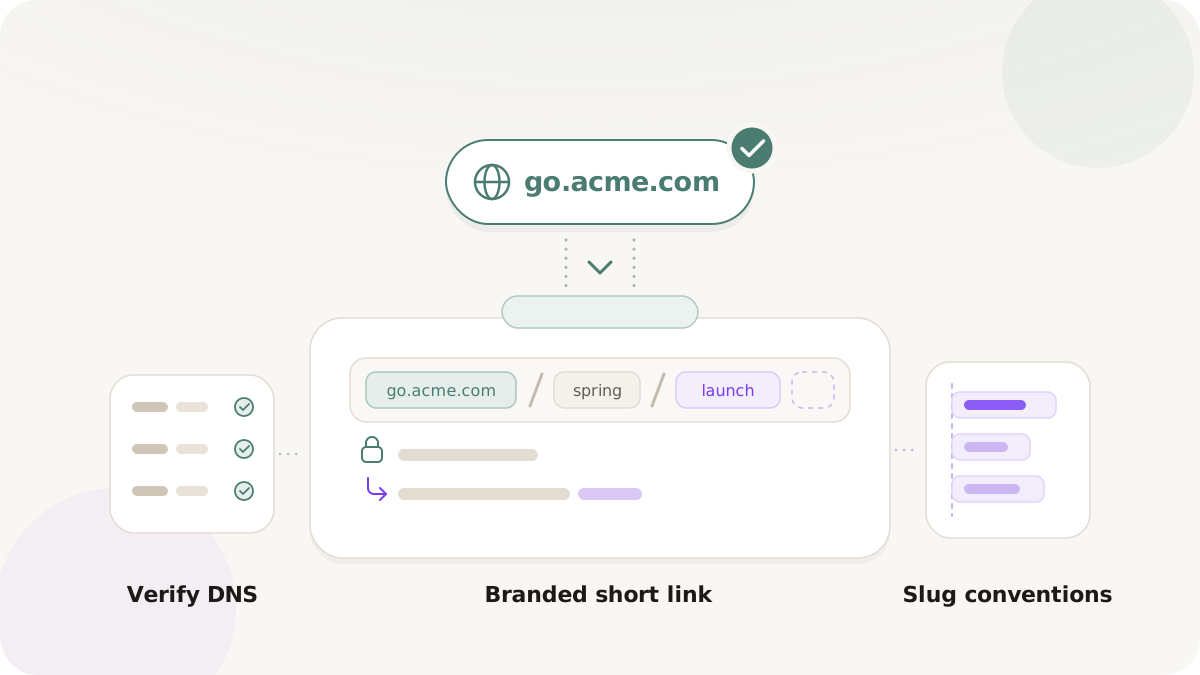
Branded short links are one of the highest-leverage, lowest-effort improvements a marketing team can make. Every time you share a link - in an email campaign, a social post, a paid ad, an SMS blast, a podcast description, or a printed QR code - that link is also a micro-impression of your brand. A link on links.yourbrand.com tells the recipient exactly who is sending them somewhere. A link on bit.ly/3xYz8q tells them nothing. Over thousands of campaigns, that difference compounds into a measurable gap in click-through rates, email deliverability, and brand equity.
This guide walks through every step: choosing a domain, wiring up DNS, establishing team slug conventions, building links correctly, and testing before launch.
Why branded short links matter for SEO and trust
Search engine positioning aside, links carry social proof. When someone receives a short link by text, email, or in a social bio, there is a fraction-of-a-second trust evaluation happening. The domain either matches the brand they expect, or it doesn't. Generic shortener domains - even well-known ones - introduce doubt. Phishing attacks have conditioned people to be suspicious of opaque links, and that suspicion costs you clicks.
Beyond first impressions, email deliverability is directly affected. Every major Email Service Provider (ESP) maintains blocklists of domains associated with high-volume spam. Because generic shorteners are shared across millions of senders, any bad actor on the same domain can hurt the reputation of the entire namespace. When your marketing team sends 50,000 emails with a generic short link, you are borrowing domain reputation you have zero control over.
Running links through your own domain means your link reputation is yours. A clean sending history stays clean because it reflects only your traffic.
1) Choose the right short domain
The domain you pick will appear in every piece of content you distribute. Get this decision right before you print anything or send a large campaign. A few principles:
Keep it short. If your brand name is long, consider a shortened variant or .link TLD. yourbrand.link is clean and purpose-built for this use case.
Decide on subdomain vs apex. links.yourbrand.com is a common pattern that keeps the main domain untouched, while yourbrand.link stands as a dedicated asset. Either works; what matters is consistency.
Avoid dashes in the root. Hyphens in the domain itself read as untrustworthy in some contexts, even when the brand name requires them. Reserve hyphens for the slug (path), not the domain.
Remember: Nimriz treats apex and www as distinct hosts. If you add yourbrand.link, traffic to www.yourbrand.link will not resolve through the same Nimriz configuration unless you explicitly add that variant. Choose one canonical form and use it everywhere.
2) Register the domain and point DNS
If you are buying a new domain, choose a registrar with fast DNS propagation and a clean management interface - providers like Cloudflare Registrar or a similar service work well here because DNS records can often be managed in the same place as your hosting.
After purchasing, you will add DNS records to verify ownership and route traffic to Nimriz. Depending on your DNS provider this is either a CNAME record pointing to Nimriz's ingress endpoint, or a set of A/AAAA records. Nimriz's dashboard surfaces the exact records needed once you add the domain.
[Visual suggestion: Screenshot of the Nimriz workspace settings > Domains panel, showing the 'Add Domain' button and the DNS record values to copy.]
[Visual suggestion: Screenshot of a DNS provider panel (e.g., Cloudflare) showing the CNAME entry configured with the Nimriz target.]
DNS propagation times vary. Most providers propagate within minutes, but in some regions it can take a few hours. Nimriz shows domain status in the dashboard; wait for "Verified and Active" before routing production traffic through it.
For a full walkthrough, see Custom domain setup and DNS verification.
3) Plan your slug conventions before you create your first link
Slug discipline is a team problem, not a technical one. Once hundreds of links exist, reformatting them is painful. Agree on conventions before the first link is created:
Case sensitivity. URL paths are technically case-sensitive on most servers. In practice, teams that mix Spring-Launch and spring-launch end up with duplicate slugs, confusion in exports, and the occasional broken link. Pick one style - lowercase is universally the safest - and enforce it.
Word separators. Hyphens (spring-launch) are more readable in URLs than underscores (spring_launch), and both are better than camel case (springLaunch). Hyphens are also treated as word separators by search engines. Settle this once and commit to it across the whole team.
Campaign-to-slug mapping. One useful pattern: slugs carry the human-readable label of what the link is, while UTM parameters carry the channel context for where and how it was distributed. So links.yourbrand.com/spring-launch is the canonical link for the campaign, and you append ?utm_source=email&utm_medium=newsletter when you drop it into a Klaviyo blast. This way, one slug can be reused across distribution channels while attribution remains precise.
Reserved and colliding slugs. Check Nimriz's reserved path list before assigning slugs. Paths like /api, /health, and others are protected. It is also worth maintaining a shared spreadsheet or the platform's own link list to avoid two team members creating /promo for different campaigns at the same time.
4) Build the long URL first, then create the short link
A common error: teams create the short link first, then worry about UTM parameters later - sometimes updating the destination URL after the link has already been sent. This means analytics at click time may not match analytics after the update, creating a gap in attribution.
The cleaner workflow:
- Finalize the destination URL, including all UTM parameters.
- Test the full destination URL in a staging or preview environment.
- Create the short link in Nimriz, pointing at the verified destination.
- Copy and distribute the short link.
If you use Nimriz's in-dashboard UTM builder, parameters are attached to the destination at link creation time and stored as metadata. This means your historical data reflects what users actually received, even if you later update the destination.
5) Test before you distribute
This step is skipped more often than it should be, and it is where expensive errors are caught late. Before any campaign send:
- Open the short link on a real mobile device, not just a desktop browser. Mobile URL bars and link preview cards behave differently from desktop browsers.
- Check the browser address bar after redirect - confirm the domain matches your configured custom host.
- If the link has UTM parameters on the destination, verify they arrive intact in your analytics tool. Open a real-time report while you click the link and confirm the event registers.
- If the link is behind a QR code, scan the QR from two different devices and confirm both resolve correctly.
- Nimriz defaults to 302 (temporary) redirects. If you intentionally need a 301 for a canonical move, verify it is set correctly - and understand the caching implications before you send.
Ongoing maintenance
Branded links are long-lived assets. A few practices keep your link library clean over time:
- Review expiring links. If you use link expiration for time-sensitive campaigns, audit the expiry dates before each campaign season ends.
- Check for orphaned slugs. Links pointing at deleted landing pages silently waste click traffic. Set up a periodic review of active links against live destinations.
- Document and version-control slug assignments. Even a simple internal wiki page that maps campaign names to slugs prevents duplication and aids cross-team handoffs.
Next steps
- Link creation and slugs - expiration, reserved slugs, and fallbacks
- Features - routing, QR, passwords, and webhooks on supported plans
- UTM best practices - how to build destination URLs before shortening